Quick answer: To extract pages from PDF files, open Split PDF, add your document, and either choose a page range (a single page works too) or split every page into its own file. Download the result. Pages are copied exactly as they are, so text stays selectable and quality is unchanged, and the document never leaves your device.
In this guide
You rarely need the whole PDF. A landlord wants the one page of your employment contract that shows your salary. A form asks for “page 2 of your bank statement”. A 40-page scanned batch needs to become eight separate documents. Splitting a PDF solves all of these, and combined with merging, it lets you delete and reorder pages too.
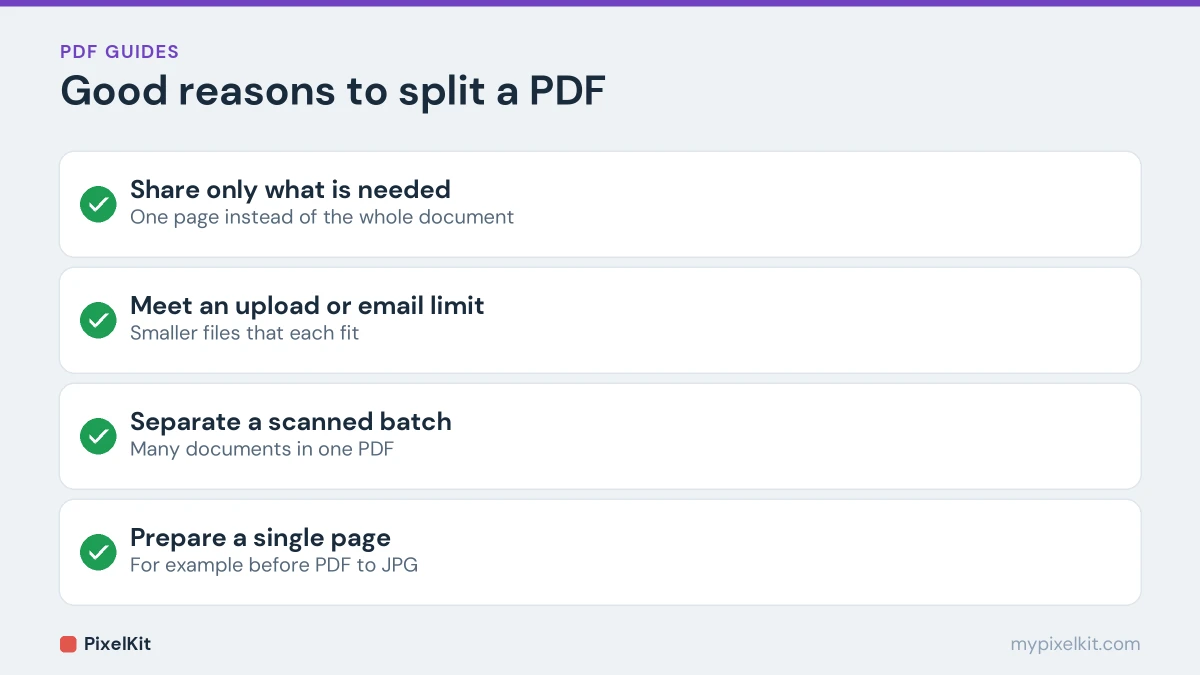
When you need to split a PDF
- Sharing only what is needed. Send the relevant page, not the whole document with everything else in it. That is better for privacy as well as convenience.
- Meeting upload limits. A long document can be broken into smaller files that each fit under a portal’s or email service’s size cap.
- Separating a scanned batch. A scanner or phone app often puts many documents into one PDF; splitting sorts them out.
- Preparing pages for other tools, such as turning just one page into an image.
How to extract pages from PDF, step by step
- Open Split PDF in your browser.
- Add the PDF you want to take pages from.
- Choose what to extract:
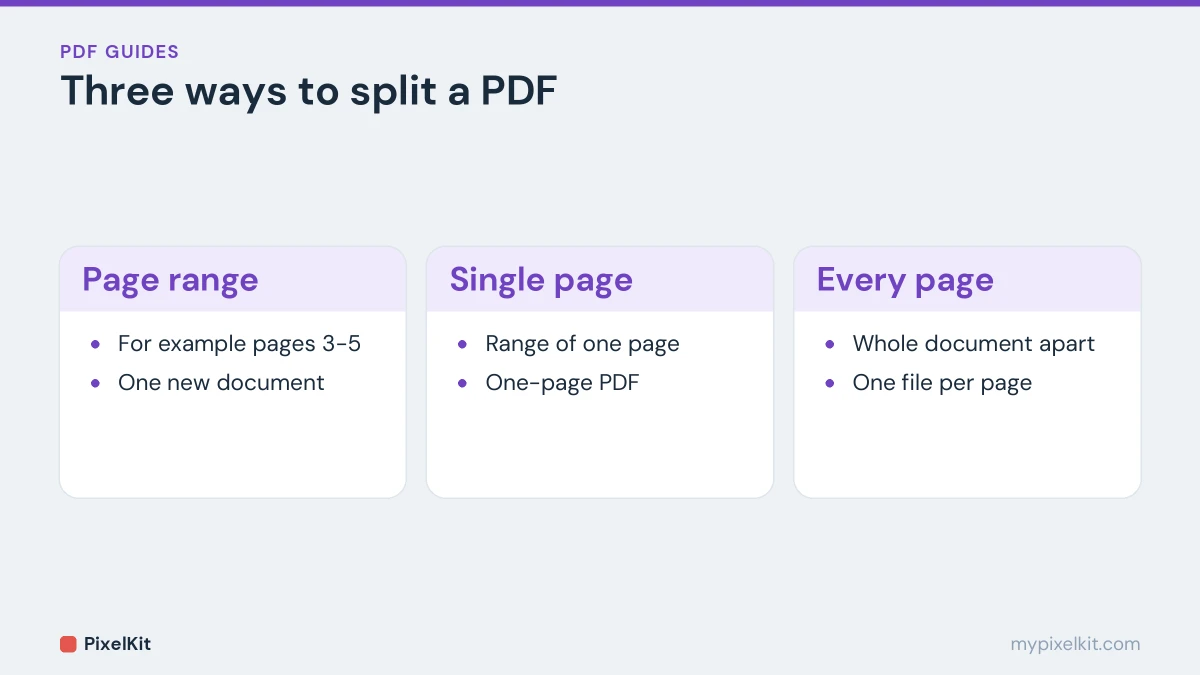
- a page range, such as 3–5, to get those pages as one new document;
- a single page, by setting the range to just that page;
- or every page as its own file, to break the whole document apart.
- Download the pieces. When the result is several files, they may be packaged together in a ZIP for a single download.
The original PDF on your device isn’t changed; splitting always creates new files. For an overview of all the PDF operations and how they fit together, see our complete guide to free PDF tools.
How to delete pages from a PDF
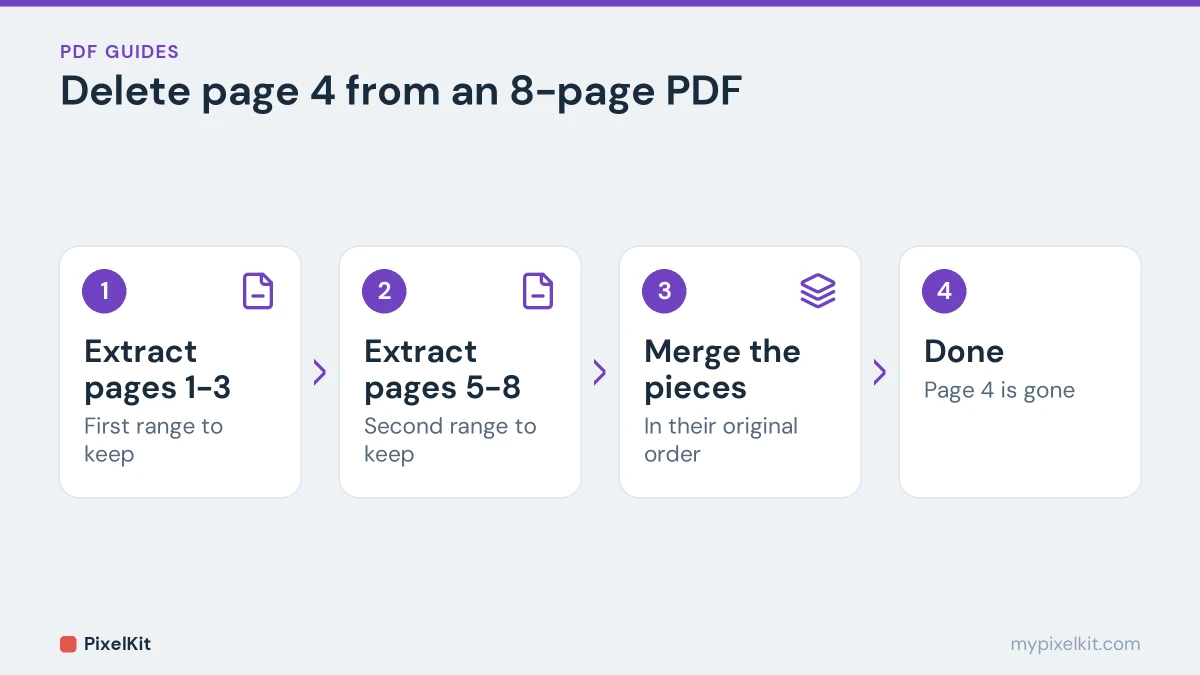
There is no separate “delete” button, because you don’t need one. Keep what you want instead:
- In Split PDF, extract the pages you want to keep, for example pages 1–3 and pages 5–8, one range at a time.
- Open Merge PDF, add those pieces in order and merge them.
The result is the original document without the unwanted pages. The same approach removes blank pages from a scan or a cover page you don’t want to send.
How to reorder pages in a PDF
Split the document into the pieces you want to move, then merge the pieces in the new order. For a single misplaced page, three pieces are enough: the pages before it, the page itself, and the pages after it. Our guide on merging PDF files has tips for getting the order right.
Splitting a large PDF to email or upload it
When a PDF is too big to send in one go, splitting it into two or three parts is often the fastest fix. Keep in mind that pages differ a lot in size: a page of plain text might be a few kilobytes, while a scanned page with a photo can be a megabyte or more. If one part is still too large, split that part again, around the heaviest pages.
If the document was built from your own photos, the better long-term fix is to shrink the images and rebuild it. Our guide on converting photos to a PDF shows how to keep scanned documents small from the start.
Does splitting affect quality?
No. The pages are copied into the new documents as they are. Real text stays real text, which you can still select and search, and images keep their original quality. That is the key difference from converting pages to images with PDF to JPG, which flattens everything into pixels.
Good habits when splitting documents
- Check page numbers first. The page number printed on a document doesn’t always match its position in the PDF, especially if there is a cover page. Count from the first page of the file.
- Name the pieces clearly, such as contract-signature-page.pdf, so you send the right one.
- Open each piece before sending to make sure it contains exactly what you expected.
Extract pages from PDF: quick recap
To extract pages from PDF documents, open Split PDF, choose a single page, a range or every page, and download the result. Pages are copied as they are, so text stays selectable. You can also extract pages from PDF files to delete the ones you do not need: keep the pages you want and join them again with Merge PDF.
Frequently asked questions
Can I extract just one page from a PDF?
Yes. Set the page range to that single page and you get it back as its own PDF.
Can I turn one page of a PDF into an image?
Yes. Extract the page with Split PDF, then convert that one-page file with PDF to JPG. See how to convert a PDF to JPG.
Does splitting work on scanned PDFs?
Yes. Scanned pages are split exactly like any other pages; they simply remain images of text.
Is my document uploaded anywhere?
No. Splitting happens in your browser, so confidential documents stay on your device.
Sources and further reading
- PDF (Wikipedia): How the PDF format stores fixed pages, text, images and forms.
- Send attachments with your Gmail message (Gmail Help): Gmail's attachment size limit and how larger files are handled.
- PDF.js (Mozilla): Mozilla's open-source library for rendering PDFs in the browser.