Quick answer: Most PDF jobs come down to four tasks: combining files (Merge PDF), pulling pages out (Split PDF), turning photos or scans into a document (Image to PDF) and turning pages into pictures (PDF to JPG). PixelKit’s free PDF tools do all four in your browser, so contracts, bank statements and ID documents never leave your device.
In this guide
PDFs are everywhere: job applications, invoices, contracts, bank statements, school forms, tickets. They are designed to look identical on every device, which is exactly why they can feel awkward to work with. You can’t just drag a page out or drop a photo in. The good news is that almost everything people need to do with PDFs is one of a few simple operations. This guide explains each one, when to use it, and how to keep your documents private while you do.
What makes a PDF different
A PDF (Portable Document Format) stores fixed pages. Each page keeps its exact size, layout, fonts and images, whatever device or app opens it. Inside, a page can contain real text, which you can select and search, or just an image of text, which is what you get from most scans and phone photos of documents.
That distinction matters later: tools that copy pages keep real text as text, while tools that turn pages into images flatten everything into pixels.
Why privacy matters more with PDFs
The documents people handle as PDFs are often the most sensitive files they own: identity documents, payslips, medical letters, tax forms, signed contracts. Many online PDF services work by uploading your file to their servers, processing it there and sending it back.
PixelKit’s PDF tools work differently. They run inside your browser using open-source libraries such as Mozilla’s PDF.js, so the document is processed on your own device and never uploaded. For confidential paperwork, that is the main reason to use a browser-based tool.
The four everyday PDF tasks
| You want to… | Use | Guide |
|---|---|---|
| Combine several PDFs into one file | Merge PDF | How to merge PDF files |
| Take out one page, a range, or every page separately | Split PDF | How to extract pages from a PDF |
| Turn photos or scans into a PDF | Image to PDF | How to convert JPG images to PDF |
| Turn PDF pages into images | PDF to JPG | How to convert a PDF to JPG |
Merging: many files into one
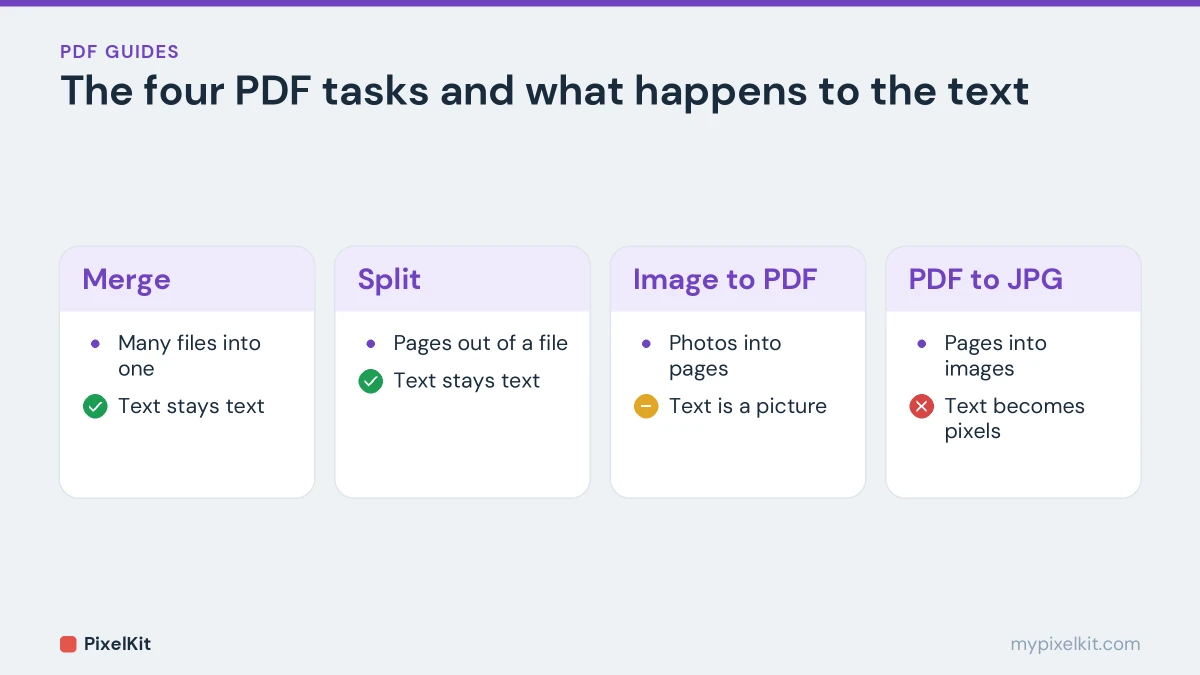
Application portals often want a single file, and a client usually prefers one invoice bundle to six attachments. Merging joins whole documents in the order you choose. The pages are copied as they are, so text stays selectable.
Splitting: pages out of a file
Splitting is the reverse. You can pull out a single page, such as the one signed page of a contract, a range of pages, or break a document into one file per page. Pages are copied without being changed, so quality is identical to the original.
Images to PDF: photos and scans into a document
When a form wants “a PDF of your certificate” and all you have is a phone photo, Image to PDF turns one or more images into pages of a single document, in the order you add them.
PDF to images: pages into pictures
Some upload forms, chat apps and presentation tools only accept images. PDF to JPG renders every page as its own picture. Text becomes part of the image, so it is no longer selectable.
Combining tasks: page-level editing without an editor
Those four operations combine into most of the other things people want to do:
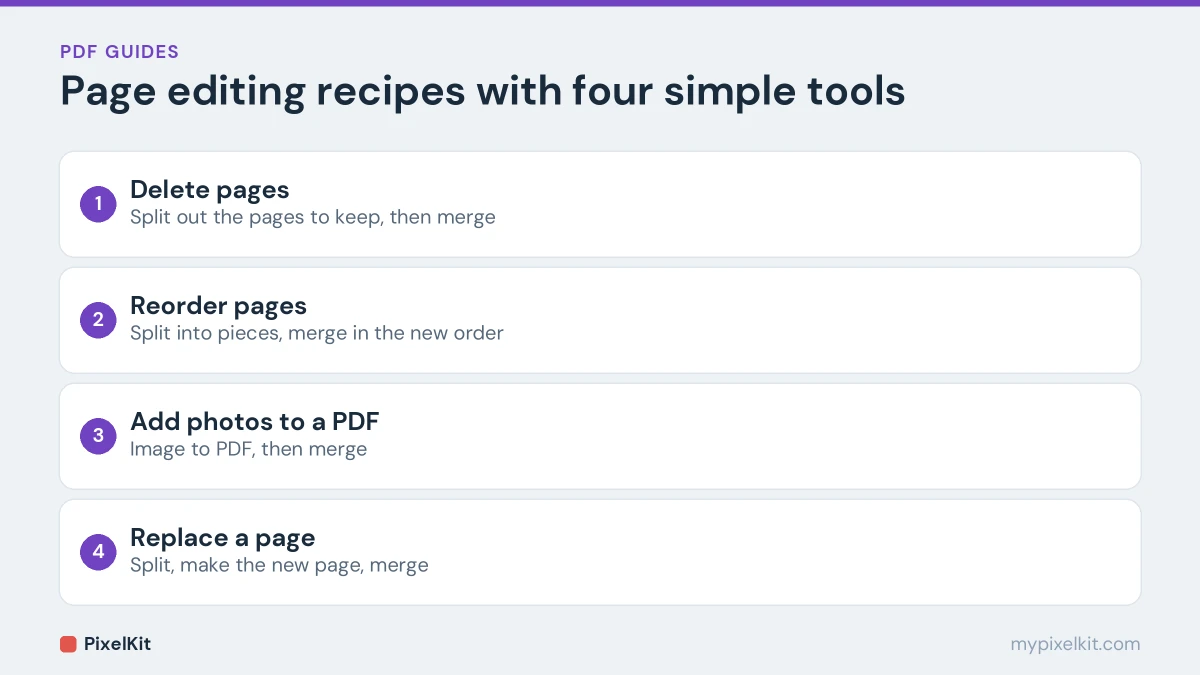
- Delete pages: extract the pages you want to keep with Split PDF, then merge them back into one file.
- Reorder pages: split the document into pieces, then merge the pieces in the new order.
- Add photos to an existing PDF: turn the photos into a PDF with Image to PDF, then merge it with the original.
- Replace a page: split out the pages around it, create the new page from an image, and merge everything in order.
What these tools don’t do is edit the words on a page. Changing text inside a PDF needs a dedicated PDF editor or the original document the PDF was made from.
Keeping PDF file sizes under control
PDFs made from text are usually small. PDFs made from photos and scans can be huge, because each page is a full-resolution image. A ten-page document built from phone photos can easily run to tens of megabytes, far over most upload and email limits.
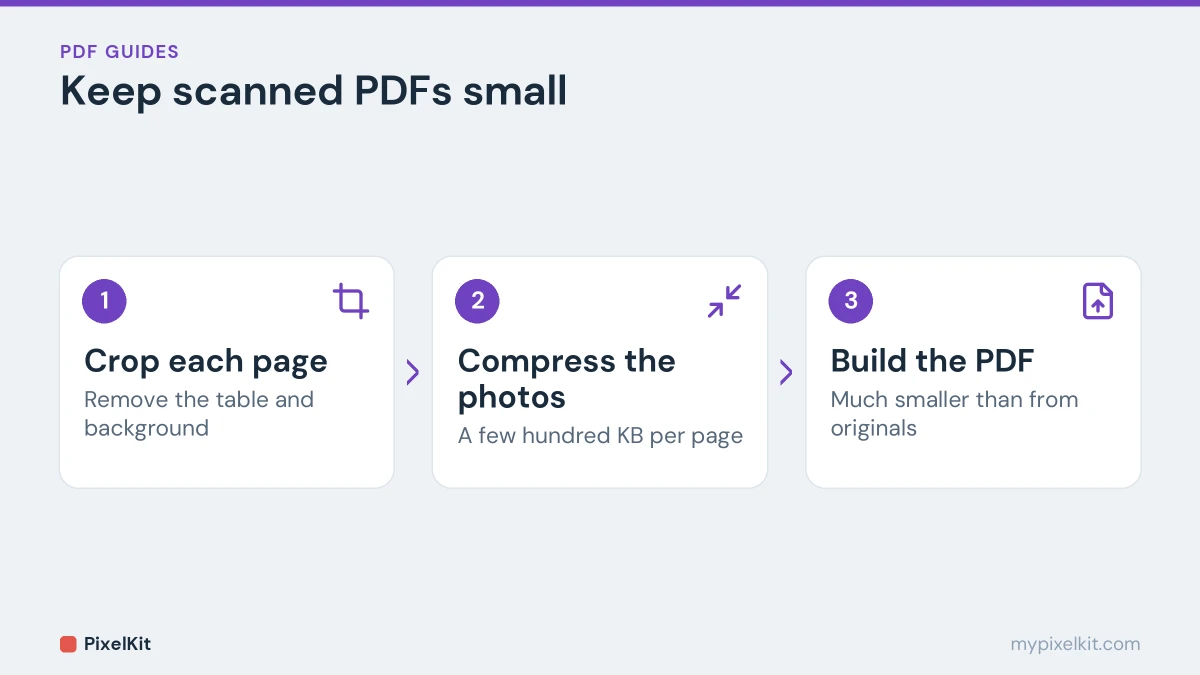
The fix is to shrink the images before they go into the PDF:
- Crop away the table or background around each page with Crop Image.
- Compress each photo with Compress Image. A few hundred kilobytes per page is usually plenty for a readable document.
- Then build the PDF.
Our guide on how to reduce image file size explains why this works so well. If a finished PDF is still too big, splitting it into smaller parts is another option.
Scanned PDFs vs digital PDFs
A PDF exported from Word, Google Docs or an accounting app contains real text. A PDF built from scans or photos contains pictures of text. You can tell by trying to select a word: if you can highlight it, it is real text.
This affects what you can expect. Real text stays sharp at any zoom level and can be searched and copied. Pictures of text depend entirely on the quality of the original photo, and making them searchable requires OCR (optical character recognition), which these tools don’t perform.
Password-protected PDFs
Some PDFs, bank statements especially, are protected with a password. Browser-based tools may not be able to open or process a protected file. If you are allowed to, open it with its password in your usual PDF reader and save or print an unprotected copy for your own use, then work with that copy.
Good habits for handling PDFs
- Name files clearly, for example 2026-03-invoice-acme.pdf, so the right document goes to the right place.
- Keep your originals. Merging and splitting create new files, but it is always worth keeping the untouched version.
- Check before you send. Open the finished file and scroll through every page: order, orientation and completeness.
- Mind the upload rules. Portals often specify “PDF only” and a size limit. If a submission is refused, see our guide to rejected uploads.
Free PDF tools: the short version
Most everyday PDF jobs come down to four tasks, and free PDF tools cover all of them: merge files into one, extract or split pages, turn images into a PDF, and turn PDF pages into images. The safest free PDF tools process documents in your browser, so contracts and statements are never uploaded. Start with Merge PDF or Split PDF, and combine the PDF tools when you need to delete or reorder pages.
Frequently asked questions
Are PixelKit’s PDF tools really free?
Yes. There is no account, no watermark and no daily limit. The practical limit is your device, since very large documents need memory to process.
Are my PDFs uploaded to a server?
No. Every tool runs in your browser and the document stays on your device.
Can I use these tools on my phone?
Yes, in any modern mobile browser. Long or scan-heavy documents simply take a little longer on a phone than on a computer.
Can I compress a PDF with PixelKit?
There isn’t a PDF compressor yet. For documents made from photos or scans, compressing the images before building the PDF gives you the same result, often with better quality.
Sources and further reading
- PDF (Wikipedia): How the PDF format stores fixed pages, text, images and forms.
- PDF.js (Mozilla): Mozilla's open-source library for rendering PDFs in the browser.
- Optical character recognition (Wikipedia): How OCR turns pictures of text into real, searchable text.
- Scan documents with Google Drive (Google Drive Help): Scanning paper documents to PDF with the Google Drive app.