Quick answer: To make image background transparent, you have to cut out the subject: a JPG can’t be transparent, and simply converting it to PNG won’t make it transparent either. To get a transparent background, open Remove Background, add your photo and let the AI model cut out the subject. You get a PNG with a transparent background, processed entirely on your device. Keep it as PNG, or convert it to WebP for a smaller file that stays transparent.
In this guide
A transparent background lets an image sit cleanly on top of anything: a colored slide, a website banner, a product page, a sticker sheet. It is one of the most requested image edits, and also one of the most misunderstood. Here is how transparency actually works, the right way to create it, and how not to lose it again.
How image transparency works
Every pixel in a normal image has three values: red, green and blue. Formats that support transparency add a fourth value, called the alpha channel, that says how see-through the pixel is, from fully transparent to fully opaque. Values in between create soft, semi-transparent edges, which is what makes hair and rounded shapes blend naturally into a new background.
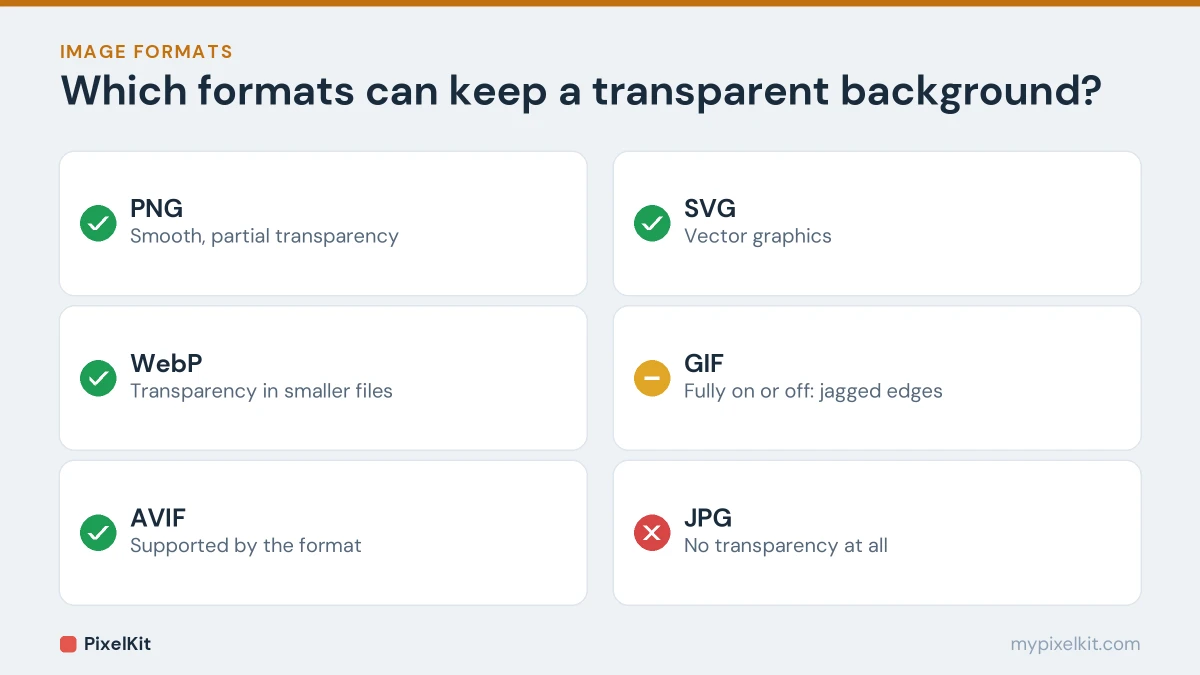
| Format | Transparency |
|---|---|
| PNG | Yes, with smooth partial transparency |
| WebP | Yes, with smooth partial transparency, in smaller files |
| AVIF | Yes |
| SVG | Yes (vector graphics) |
| GIF | Only fully on or off, so edges look jagged |
| JPG | No |
For a broader comparison of what each format is good at, see JPG vs PNG vs WebP.
Why converting a JPG to PNG doesn’t make it transparent
This is the most common mistake. A JPG photo has a solid background baked into its pixels. Converting it to PNG with Convert from JPG gives you a PNG that could hold transparency, but every pixel is still solid, so the background is still there. Something has to decide which pixels belong to the subject and which belong to the background. That is exactly what a background remover does.
How to make an image background transparent
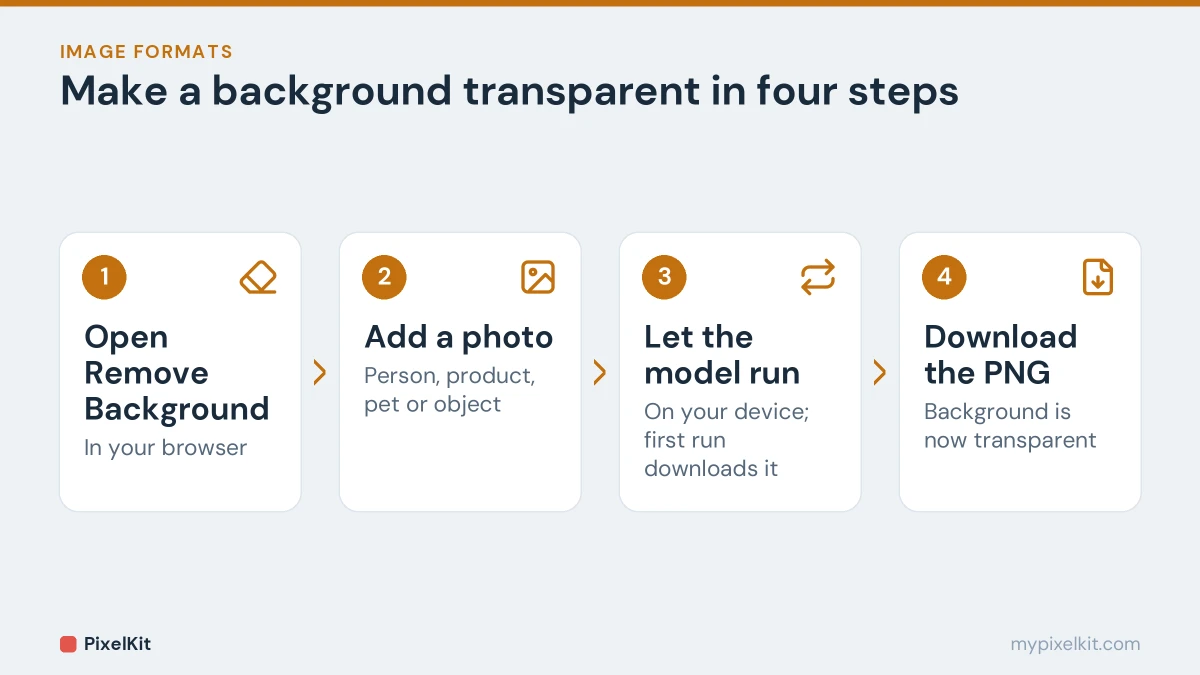
- Open Remove Background in your browser.
- Add a photo with a clear subject: a person, a product, a pet or an object.
- Wait for the model to run. The first time, your browser downloads the AI model, which takes a little while. After that, it is cached and much faster.
- Download the PNG. The background is now transparent and ready to place on any color.
The AI model runs on your own device. The model file is downloaded from a content network, but your photo itself is never uploaded.
What gives the cleanest cut-out
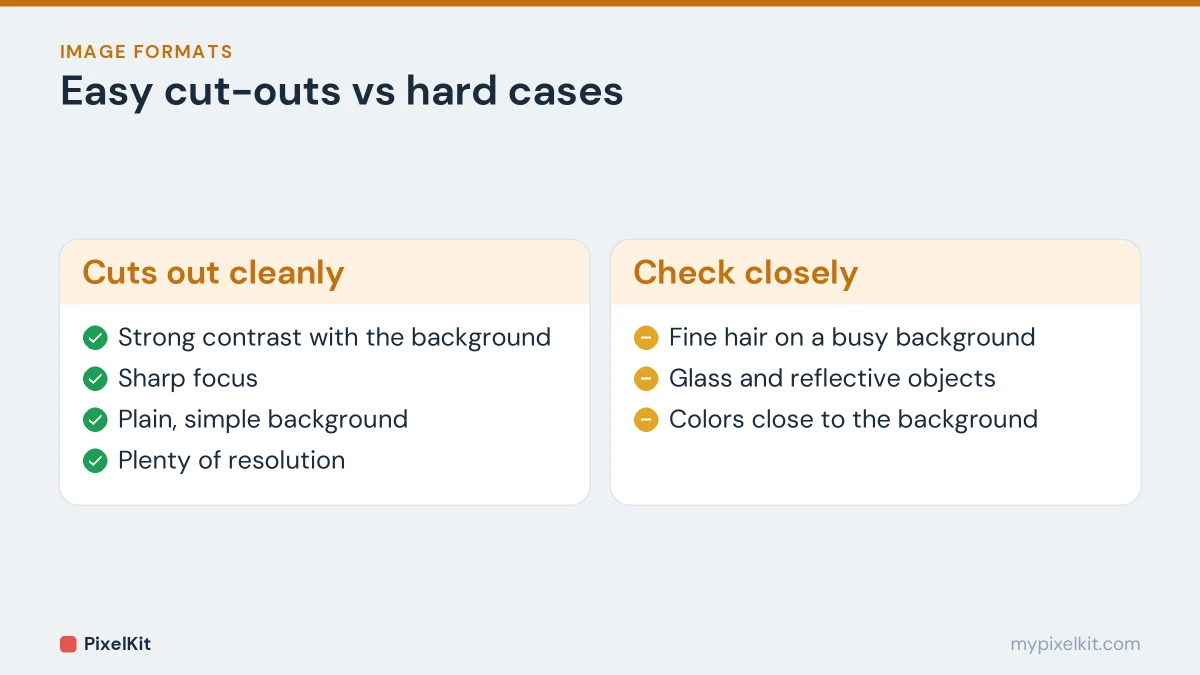
- Contrast. A subject that stands out clearly from its background, such as a dark mug on a light table, separates best.
- Sharp focus. Blurry edges produce soft, uncertain outlines.
- A simple background. Busy patterns and clutter are harder to separate than a plain wall.
- Enough resolution. A larger original gives the model more detail to work with, especially around hair and fine edges.
The hardest cases are fine hair against a busy background, transparent or reflective objects such as glass, and subjects whose colors closely match the background. Expect to check these closely.
Logos, signatures and flat graphics
Background removers are trained mainly on photos of people and objects. A logo or signature on white paper may come out well, but results with flat graphics are less predictable. For logos, the best source is always the original design file from whoever created it, ideally an SVG or a PNG exported with transparency. For a signature, a clean, high-contrast scan cropped tightly with Crop Image gives the model the best chance.
Beware of “fake” transparent PNGs
Image editors show transparency as a grey-and-white checkerboard. Some images found online have that checkerboard drawn into the pixels, so they look transparent in a search result but show the pattern once placed on your design. If a “transparent” image has a checkerboard when you open it in an ordinary image viewer, it isn’t really transparent. Remove the background yourself instead.
How to keep the transparency
- Don’t save it as JPG. Converting to JPG fills every transparent pixel with a solid color. Only do that on purpose, for example to put a product on white.
- To make it smaller, use WebP. Convert Image can turn the PNG into WebP, which keeps the transparent background in a much smaller file, ideal for websites. For more ways to shrink files, see how to reduce image file size.
- Check where it is going. Some platforms convert uploads to JPG automatically. If the background turns white or black after uploading, that is the reason, not your file.
What to do with a transparent image
- Place people or products on colored backgrounds for social posts and banners.
- Create stickers and overlays.
- Build consistent product images for an online shop. Our guide on removing the background from product photos covers the full workflow, including putting products on pure white.
- Drop a cut-out into slides and documents without a white box around it.
Make image background transparent: the short version
To make image background transparent, you have to remove the background, not just change the file type. Cut the subject out with Remove Background, keep the result as a transparent PNG, and avoid saving it back to JPG, which fills the transparent background in. The same approach works whether you make image background transparent for a logo, a signature or a product shot.
Frequently asked questions
How do I make a PNG background transparent?
If the PNG has a solid background, run it through Remove Background. The result is a new PNG where the background is transparent.
Why does my transparent image have a white or black background?
It has been saved or converted as JPG somewhere along the way, either by you or by the platform you uploaded it to. JPG cannot store transparency, so the transparent area gets filled. Use the original PNG, or a WebP. The same thing happens when a WebP is converted to JPG.
Can I make a JPG transparent without removing the background?
No. Transparency means some pixels are see-through, so something has to decide which ones. That is the background removal step.
Is Remove Background free?
Yes, with no sign-up, no watermark and no limit on the number of images.
Sources and further reading
- Alpha compositing (Wikipedia): How the alpha channel blends transparent pixels with a background.
- PNG (Wikipedia): The PNG format, its lossless compression and alpha transparency.
- Image file type and format guide (MDN Web Docs): The image formats supported on the web and when to use each one.
- background-removal-js (IMG.LY on GitHub): The open-source library that runs AI background removal in the browser.