Quick answer: To convert HEIC to JPG, open Convert to JPG, drop in your HEIC photos (several at once is fine), convert and download the JPGs. It works on iPhone, Android, Windows and Mac, in the browser, without uploading your photos. To stop your iPhone creating HEIC files at all, go to Settings → Camera → Formats and choose Most Compatible.
In this guide
You took a photo on your iPhone, tried to upload it to a form or open it on a Windows PC, and got an error or a file that nothing wants to open. The culprit is almost always the HEIC format. It is a perfectly good format, just not a universally supported one. Here is what HEIC is, how to convert it to JPG on any device, and how to avoid the problem in the future.
What is a HEIC file?
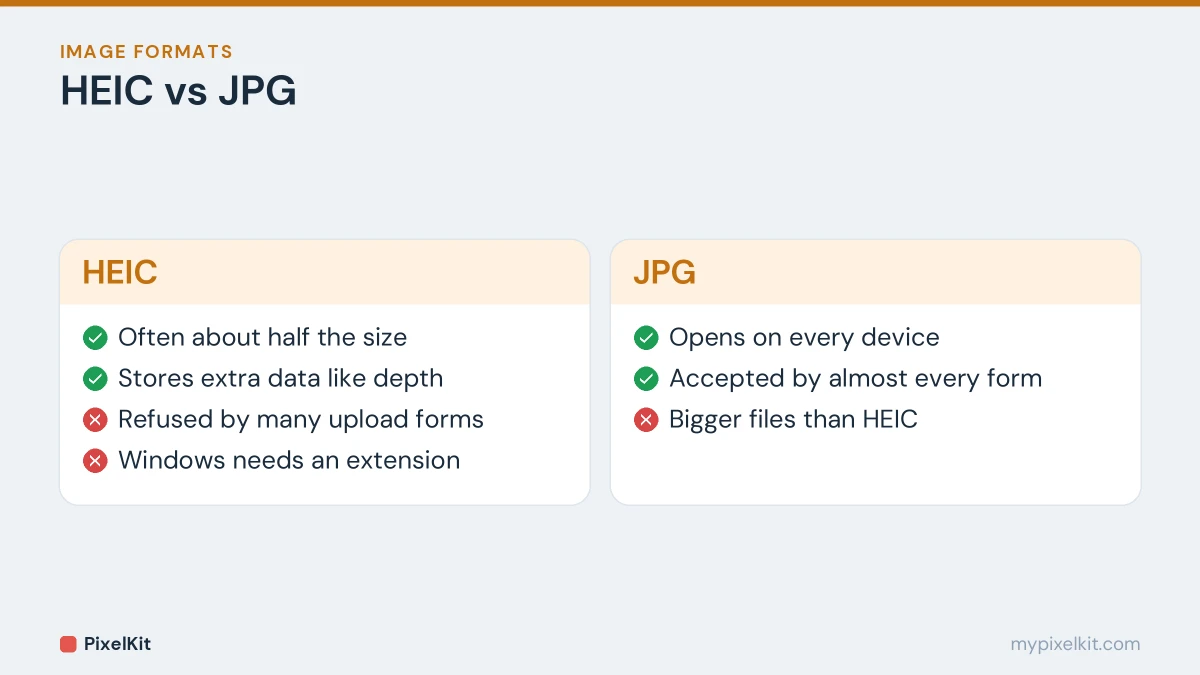
HEIC is Apple’s name for images stored in the HEIF format using HEVC compression, the same technology used for efficient video. Apple made it the default photo format on iPhones with iOS 11 in 2017. The appeal is efficiency: a HEIC photo is often around half the size of a JPG of similar quality, which saves a lot of storage on a phone full of pictures. It can also hold extra information, such as depth data used for portrait effects.
On Apple devices, HEIC works seamlessly. Outside that world, it causes trouble.
Why HEIC photos cause problems
- Upload forms reject them. Many job portals, government sites and online shops accept only JPG and PNG.
- Windows can’t always open them. Windows needs Microsoft’s HEIF Image Extensions (and on some systems the HEVC Video Extensions) to display HEIC files.
- Many apps and web tools don’t support them, including plenty of photo editors, printing services and older Android devices.
- The people you send them to may not be able to open them.
JPG, on the other hand, opens everywhere. That is why converting is usually the simplest fix. For how HEIC compares with every other common format, see our guide to JPG vs PNG vs WebP and other image formats.
How to convert HEIC to JPG in your browser
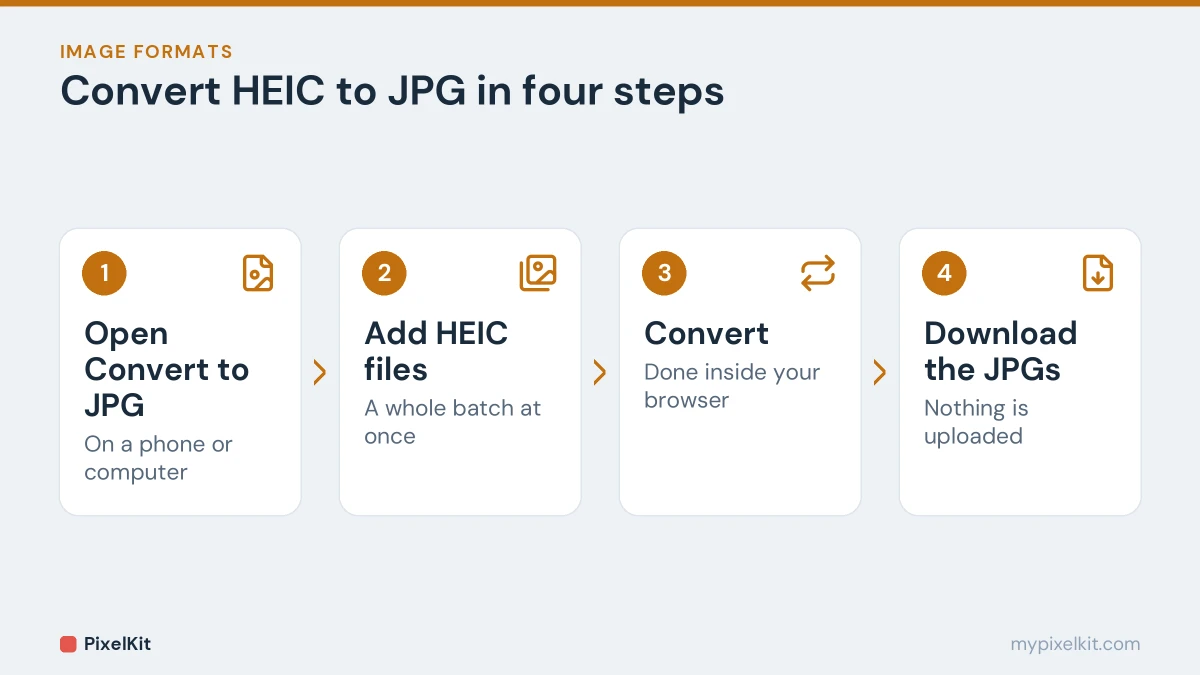
- Open Convert to JPG on your phone or computer. There’s no app to install and no account to create.
- Add your HEIC files. Drag them onto the box or tap it to choose them. You can add a whole batch at once.
- Convert. Each photo is decoded and saved as a JPG inside your browser.
- Download the JPGs and use them wherever you need.
The conversion happens on your device, so personal photos, ID pictures and documents are never uploaded to a server. The same tool also handles PNG, GIF, WebP, BMP, SVG and TIFF files if you have a mixed folder.
Other ways to convert HEIC to JPG
On a Mac
Open the HEIC file in Preview, choose File → Export, select JPEG as the format and save. You can also select several photos in Preview’s sidebar and export them together.
On Windows
Installing HEIF Image Extensions from the Microsoft Store lets the Photos app open HEIC files, and you can then save a copy in another format. If you only need a few JPGs, converting in the browser is quicker than installing anything.
When transferring from an iPhone to a computer
On the iPhone, go to Settings → Photos and, under Transfer to Mac or PC, choose Automatic. Photos imported over a cable are then converted to a compatible format during the transfer.
How to make your iPhone save JPGs instead of HEIC
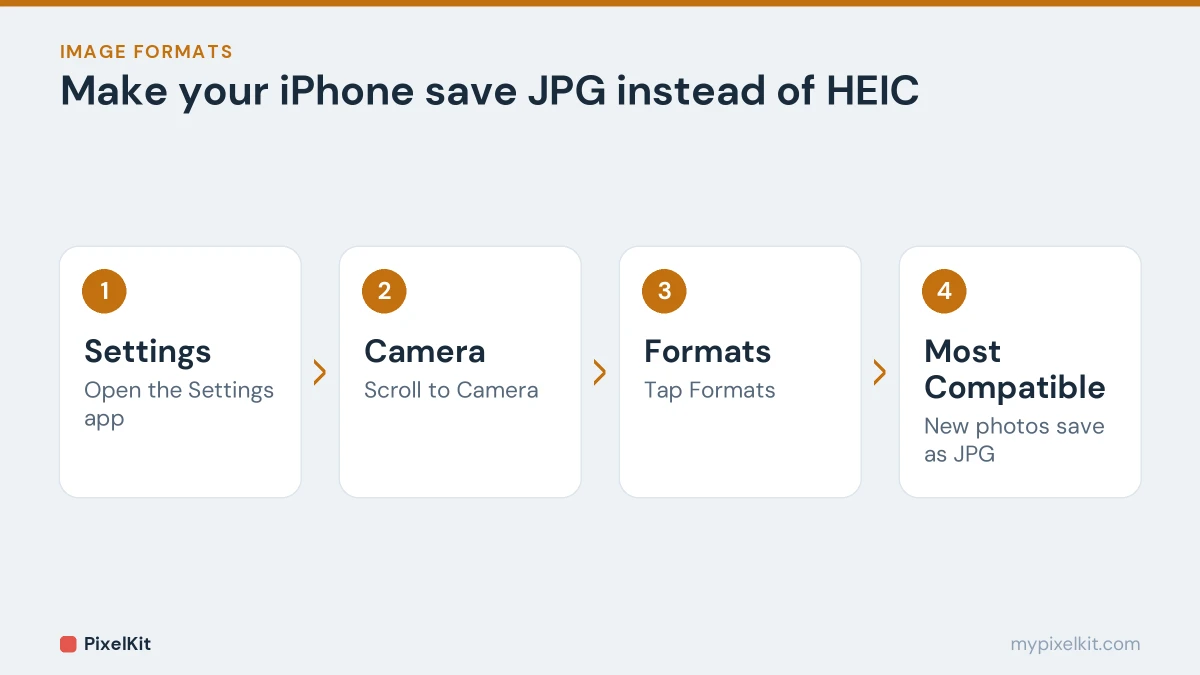
Go to Settings → Camera → Formats and choose Most Compatible. From then on, new photos are saved as JPG. Photos you have already taken stay in HEIC.
The trade-off is storage: JPG photos take up noticeably more space than HEIC. If your phone is short on storage, it can make more sense to keep HEIC and convert only the photos you need to share or upload.
Does converting HEIC to JPG reduce quality?
Converting re-encodes the photo with JPG compression, so technically some information changes. At normal quality the difference is very hard to see. Two things may surprise you, though:
- The JPG is usually bigger than the HEIC. That is expected, because HEIC compresses more efficiently. It is not a sign that something went wrong.
- The JPG may still be too big for an upload form. Conversion doesn’t aim for a file size. Run the JPG through Compress Image afterwards, and see our guide on compressing an image to 50KB for tight limits.
What about Live Photos?
A Live Photo is a still HEIC image paired with a short video clip. Converting to JPG gives you the still photo only; JPG can’t hold the motion part.
Uploading iPhone photos to forms: a quick checklist
- Convert HEIC to JPG.
- Check the photo is upright. If not, fix it with Rotate Image.
- Resize or crop if the form asks for specific dimensions.
- Compress to fit the size limit.
If the form still refuses the file, our guide to why photo uploads get rejected covers every other common cause.
Frequently asked questions
Is HEIC better than JPG?
For storing photos on an iPhone, yes: similar quality in a smaller file. For sharing and uploading, JPG is better because everything can open it.
Can I convert many HEIC photos at once?
Yes. Add as many files as you need to Convert to JPG and they are converted in the same run.
Why won’t my HEIC file open on Windows?
Windows doesn’t include HEIC support by default. Install HEIF Image Extensions from the Microsoft Store, or convert the file to JPG.
Is it safe to convert private photos online?
With PixelKit, your photos never leave your device. The conversion runs inside your browser, and nothing is uploaded or stored on a server.
What about WebP images?
WebP files downloaded from websites cause the same kind of problem. See how to convert WebP images to JPG.
Sources and further reading
- Using HEIF or HEVC media on Apple devices (Apple Support): Apple's explanation of HEIF/HEIC photos and the compatibility settings on iPhone.
- HEIF Image Extensions (Microsoft Store): Microsoft's free extension that lets Windows open HEIC images.
- High Efficiency Image File Format (Wikipedia): Background on the HEIF container behind HEIC photos.
- Bring your photos to life (Apple Support): Apple's guide to Live Photos, which pair a still image with motion.