Quick answer: In the JPG vs PNG vs WebP choice, use JPG for photos that need to open anywhere, PNG for screenshots, logos, text and anything with a transparent background, and WebP for images on a website, where its smaller files load faster. Convert iPhone HEIC photos to JPG before sharing or uploading them, and use SVG for logos and icons on the web.
In this guide
Picking the wrong image format causes most everyday image headaches: screenshots with fuzzy text, photos that are ten times bigger than they should be, cut-outs that lose their transparent background, and uploads that a website simply refuses. The choice gets easy once you know what each format is designed for. This guide compares JPG vs PNG vs WebP and the other formats you will actually meet, when to use each one, and how to convert between them.
JPG vs PNG vs WebP: the short version
| Format | Best for | Transparency | Animation | Opens almost everywhere? |
|---|---|---|---|---|
| JPG | Photos | No | No | Yes |
| PNG | Screenshots, logos, text, graphics | Yes | No | Yes |
| WebP | Images on websites | Yes | Yes | All current browsers, not every app |
| GIF | Short, simple animations | On or off only | Yes | Yes |
| AVIF | The smallest web images | Yes | Yes | Current browsers, few other apps |
| HEIC | Photo storage on iPhones | Yes | No | Mainly Apple devices |
| SVG | Logos, icons, simple illustrations | Yes | Possible | Browsers and design tools |
JPG: the universal format for photos
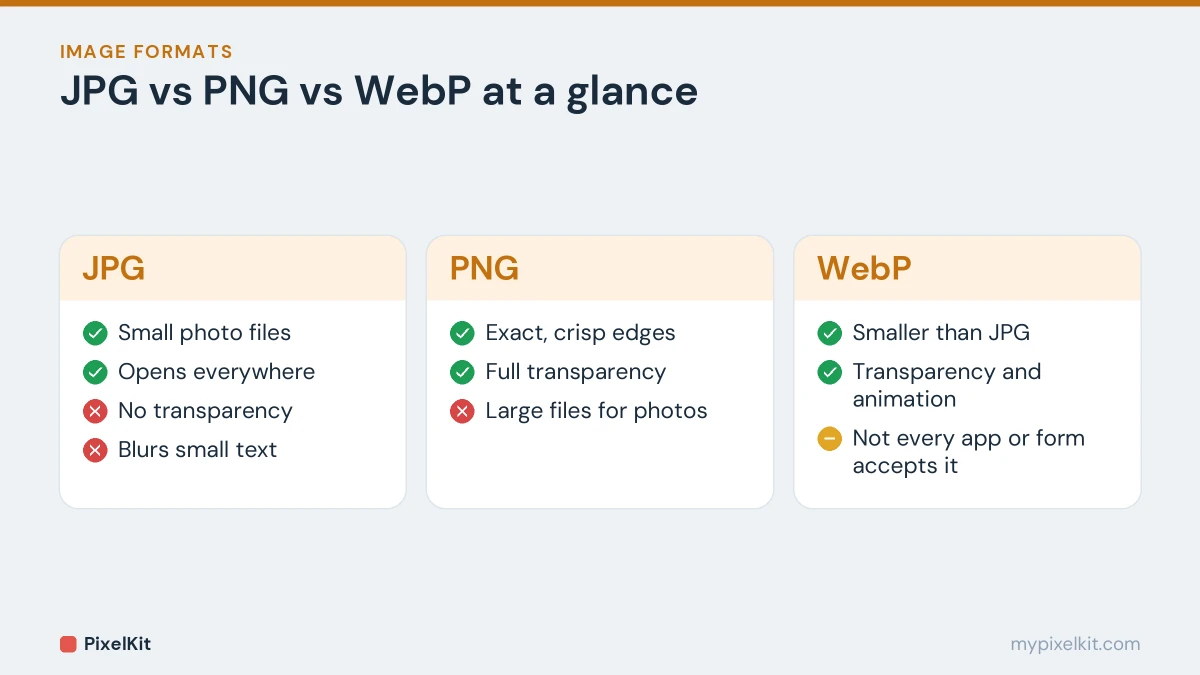
JPG (also written JPEG) has been the standard photo format for decades, and every device, app and website can open it. It uses lossy compression, discarding fine detail that people are unlikely to notice, which keeps photos small.
Use it for: photos you want to send, upload, print or share, especially to forms and people whose software you don’t control.
Watch out for: JPG has no transparency, it blurs sharp edges and small text, and it loses a little quality every time it is edited and saved again.
PNG: sharp, exact and transparent
PNG is lossless: every pixel is stored exactly. That keeps text, lines and flat colors perfectly crisp. It also has a full alpha channel, meaning each pixel can be fully transparent, fully opaque or anything in between, which gives cut-outs smooth, soft edges.
Use it for: screenshots, logos, icons, diagrams, charts, images with text, and anything that needs a transparent background.
Watch out for: photos. A photo saved as PNG is typically several times larger than the same photo as a JPG, with no visible benefit. To understand why, read our explainer on lossy vs lossless compression.
WebP: the modern web format
WebP was created by Google to make web images smaller. It can work in a lossy mode, like JPG, or a lossless mode, like PNG, and it supports transparency and animation in both. Google reports lossy WebP files are about 25–34% smaller than comparable JPGs, and every current browser displays WebP.
Use it for: images on your own website or online shop, where smaller files mean faster pages. See our guide to optimizing images for a faster website.
Watch out for: sharing outside the browser. Some older photo editors, apps and upload forms still don’t accept WebP. That is why an image saved from a website sometimes won’t open or upload; our guide on converting WebP to JPG fixes it.
GIF: animations, with limits
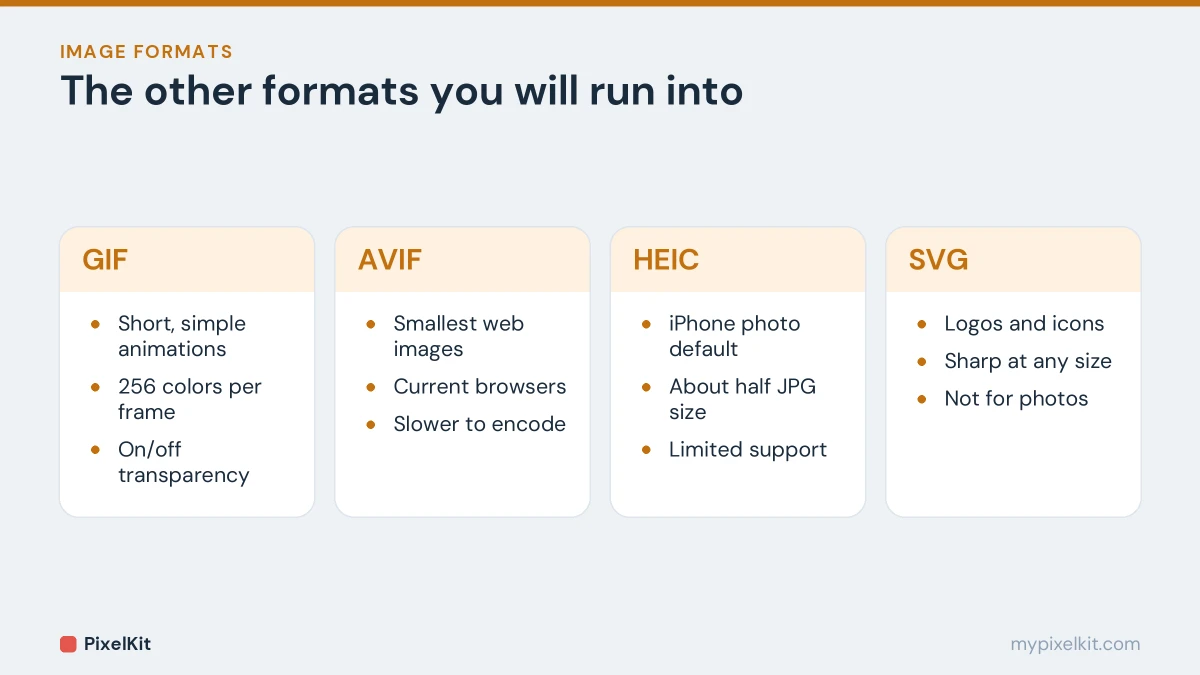
GIF is best known for short looping animations. It is limited to 256 colors per frame, so photos look grainy, and its transparency is all-or-nothing, which leaves jagged edges. For animation on a website, a short video or an animated WebP is usually much smaller and looks better. GIF remains useful when a platform only accepts GIF.
AVIF: smallest files, newest format
AVIF often produces even smaller files than WebP at similar quality, and all major current browsers can display it. Encoding is slower and support outside browsers is still patchy, so it is best suited to websites whose platform generates AVIF automatically, ideally with a fallback.
HEIC: great on iPhone, awkward elsewhere
Since iOS 11, iPhones have saved photos as HEIC by default. It stores high-quality photos in files that are often around half the size of a comparable JPG. The problem is compatibility: many websites, Windows programs and Android apps can’t open it. Convert HEIC photos to JPG before sharing or uploading them; our guide on converting iPhone HEIC photos to JPG shows how, including how to make your iPhone save JPGs in the first place.
SVG: for logos and icons
SVG is different from all the others: it stores shapes, lines and text as mathematical descriptions rather than pixels. That means an SVG logo stays razor-sharp at any size and is usually tiny. It is ideal for logos, icons and simple illustrations on the web, but not for photos.
How to choose: five questions
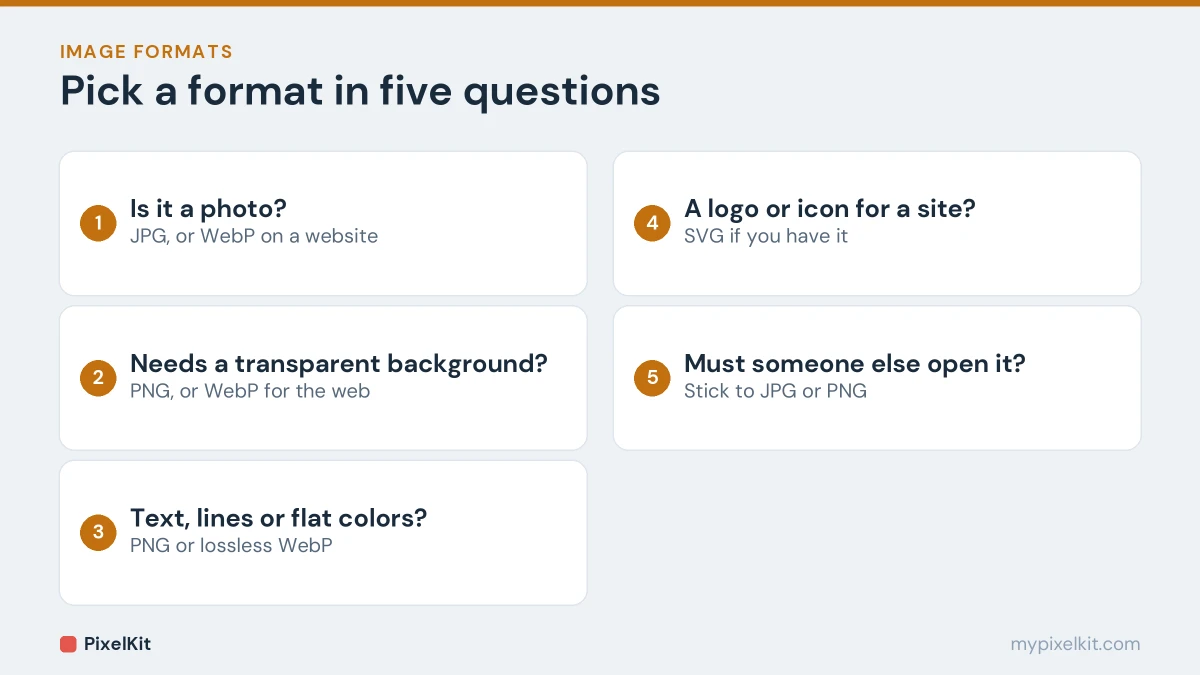
- Is it a photo? JPG, or WebP if it is going on a website.
- Does it need a transparent background? PNG, or WebP for the web. Never JPG.
- Does it contain text, lines or flat colors? PNG, or lossless WebP.
- Is it a logo or icon for a website? SVG if you have it, otherwise PNG.
- Will someone else open it, or does a form have to accept it? Stick to JPG or PNG.
Common situations
- Uploading a photo to an application form: JPG.
- Sending holiday photos to family: JPG.
- A screenshot for a tutorial or bug report: PNG.
- A product photo on a white or transparent background: JPG on white for marketplaces, PNG or WebP for a transparent cut-out. See removing the background from a product photo.
- A hero image on your website: WebP.
- A sticker, overlay or cut-out: PNG. Our guide on making an image background transparent covers how.
- Printing: the original file, or a JPG saved at high quality.
Converting between formats
PixelKit has three converters, all running in your browser so your images are never uploaded:
- Convert Image switches a file between JPG, PNG and WebP.
- Convert to JPG turns PNG, GIF, WebP, BMP, SVG, TIFF and HEIC files into JPGs, several at a time.
- Convert from JPG turns JPG photos into PNG or GIF in bulk.
Three things to know before you convert:
- Converting to JPG removes transparency. Transparent areas are filled with a solid color; Convert Image fills them with white.
- Converting to PNG doesn’t add quality or transparency. A JPG turned into a PNG keeps its existing flaws in a bigger file, and its background stays solid. To cut out a subject, use Remove Background.
- Converting doesn’t aim for a file size. If you also have a size limit, run the result through Compress Image afterwards.
Frequently asked questions
Is WebP better than JPG?
For websites, usually yes: similar quality in a smaller file, plus transparency. For sharing and uploading, JPG is still safer because every app and form accepts it.
Is PNG higher quality than JPG?
PNG is exact, so it is clearly better for screenshots, text and graphics. For photos, a good-quality JPG looks the same to the eye in a much smaller file.
Why do images I save from websites come out as WebP?
Many sites serve WebP to load faster, so that is the file your browser saves. Convert it to JPG or PNG if another program won’t open it.
Which image format gives the smallest file?
For photos, AVIF and WebP usually beat JPG. For simple graphics and logos, SVG is often smallest of all. For the full picture on shrinking files, read how to reduce image file size.
Sources and further reading
- Image file type and format guide (MDN Web Docs): The image formats supported on the web and when to use each one.
- WebP: an image format for the web (Google for Developers): Overview of the WebP format, its lossy and lossless modes and transparency.
- WebP image format (Can I use): Up-to-date browser support table for WebP.
- AVIF image format (Can I use): Up-to-date browser support table for AVIF.
- SVG (Wikipedia): How vector graphics work and why they stay sharp at any size.