Quick answer: Lossless compression shrinks a file without changing a single pixel, so the original can be restored exactly (PNG, GIF). Lossy compression permanently discards detail your eyes are unlikely to notice, which produces much smaller files (JPG, and usually WebP). Use lossy for photos, and lossless for screenshots, logos, text and anything you plan to edit again.
In this guide
Every image file you save is compressed in one of two ways, and understanding lossy vs lossless compression explains most of the everyday puzzles: why a screenshot saved as JPG looks fuzzy, why a photo saved as PNG is enormous, and why an image gets worse every time you edit and save it. Here is how both methods work, what each one costs you, and how to choose.
What is image compression?
An image is a grid of pixels, and each pixel needs a few bytes to describe its color. Stored raw, a 12-megapixel photo would take about 36 MB. Compression is any method that stores the same picture in fewer bytes. The two families differ in one crucial way: whether the picture you get back is exactly the one you put in.
How lossless compression works
Lossless compression looks for patterns and describes them more efficiently. Instead of listing 200 white pixels one by one, it can effectively write “200 white pixels”. PNG does this in two stages: it first predicts each pixel from its neighbours and stores only the difference, then packs the result with DEFLATE, the same family of algorithm used in ZIP files.
When the file is opened, every pixel is rebuilt exactly. Nothing is lost, no matter how many times you save it.
The catch is that lossless compression only works well on images with repetition: flat colors, sharp edges, text, user interfaces, diagrams and logos. Photographs are full of fine noise and subtle gradients that never repeat exactly, so a photo saved as PNG usually stays large.
How lossy compression works
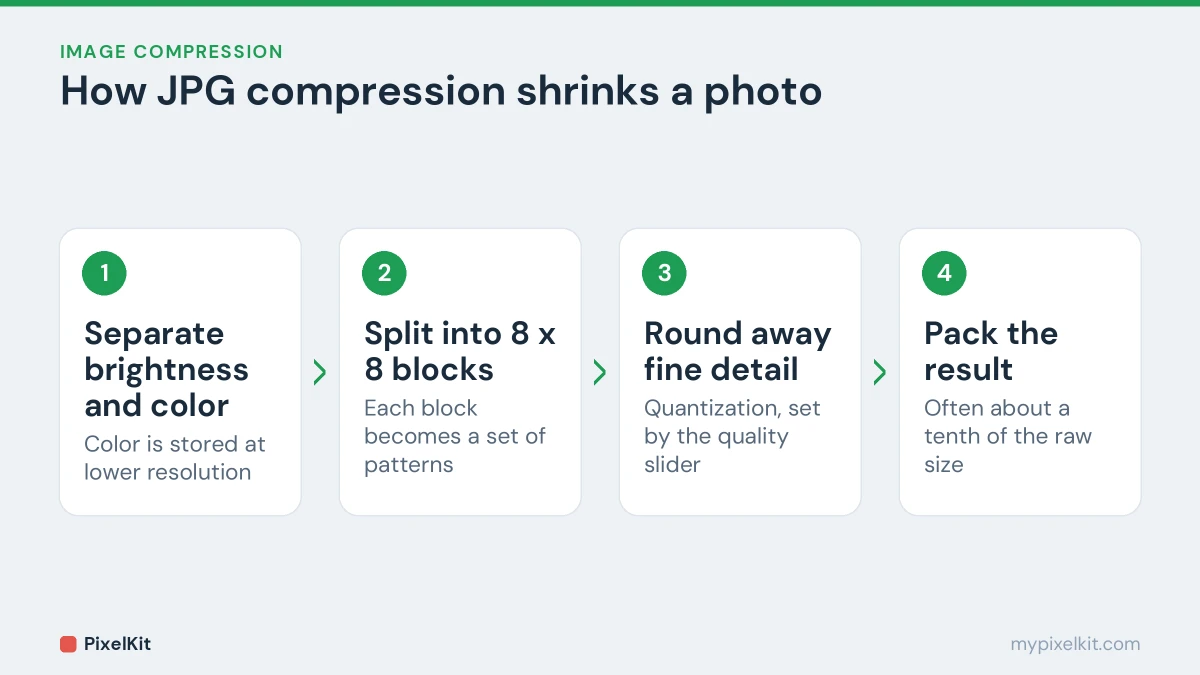
Lossy compression takes a different approach: it throws away information that people are unlikely to notice. JPG is the classic example, and it combines several tricks:
- It separates brightness from color and stores color at a lower resolution, because our eyes are much more sensitive to changes in brightness than in color.
- It splits the image into 8 × 8 pixel blocks and converts each block into a set of patterns, from smooth to finely detailed.
- It rounds away the finest detail in each block. This step, called quantization, is where the size savings come from, and it is controlled by the quality setting.
The result is dramatic: a JPG at good quality is typically around a tenth of the raw size with little visible difference. The trade-off is that the discarded detail is gone for good.
Lossy vs lossless compression at a glance
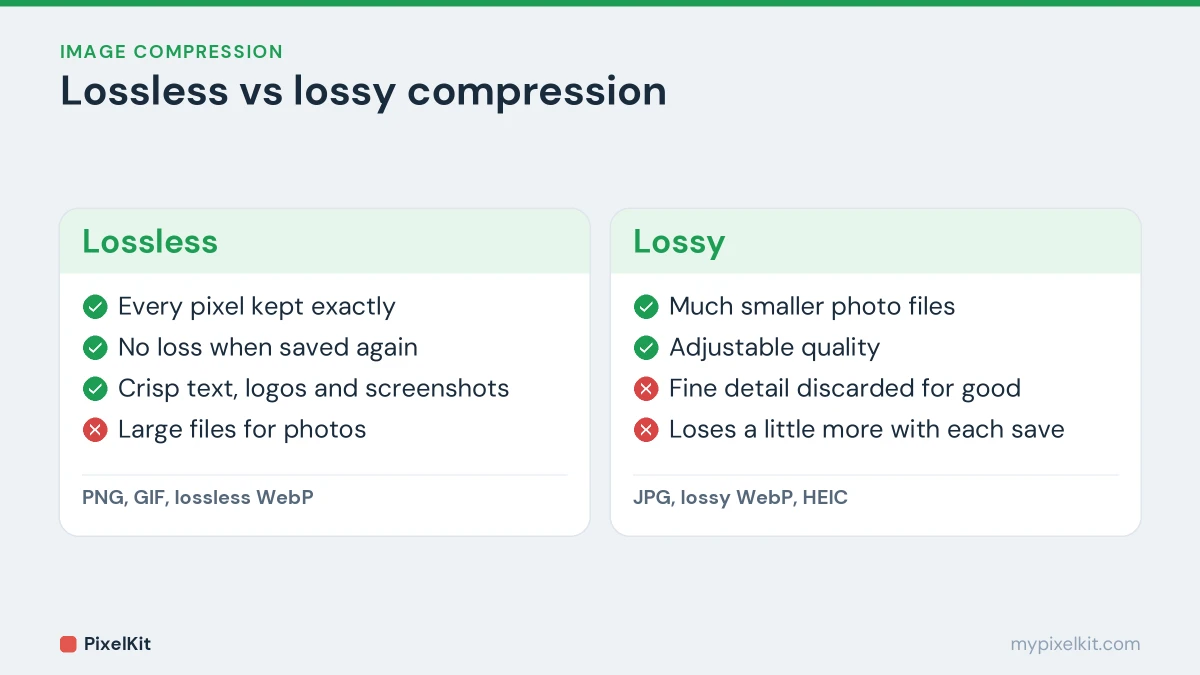
| Lossless | Lossy | |
|---|---|---|
| What happens to the image | Every pixel is kept exactly | Fine detail is permanently discarded |
| File size for a photo | Large | Small, often several times smaller |
| File size for a screenshot or logo | Small | Small, but edges and text get fuzzy |
| Saving again after editing | No further loss | Quality drops a little each time |
| Typical formats | PNG, GIF, lossless WebP | JPG, lossy WebP, HEIC |
Which image formats are lossy and which are lossless?
| Format | Compression | Transparency | Best for |
|---|---|---|---|
| JPG / JPEG | Lossy | No | Photos |
| PNG | Lossless | Yes | Screenshots, logos, graphics, text |
| GIF | Lossless, but limited to 256 colors | Yes (fully on or off) | Simple animations |
| WebP | Lossy or lossless | Yes | Almost any image on a website |
| AVIF | Lossy or lossless | Yes | Modern websites that want the smallest files |
| HEIC | Lossy, as saved by iPhones | Supported by the format | Phone photo storage |
GIF is a special case. Its compression is technically lossless, but it can only hold 256 colors, so converting a photo to GIF throws color information away before compression even starts.
What too much lossy compression looks like
Push lossy compression too far and characteristic flaws, called artifacts, appear:
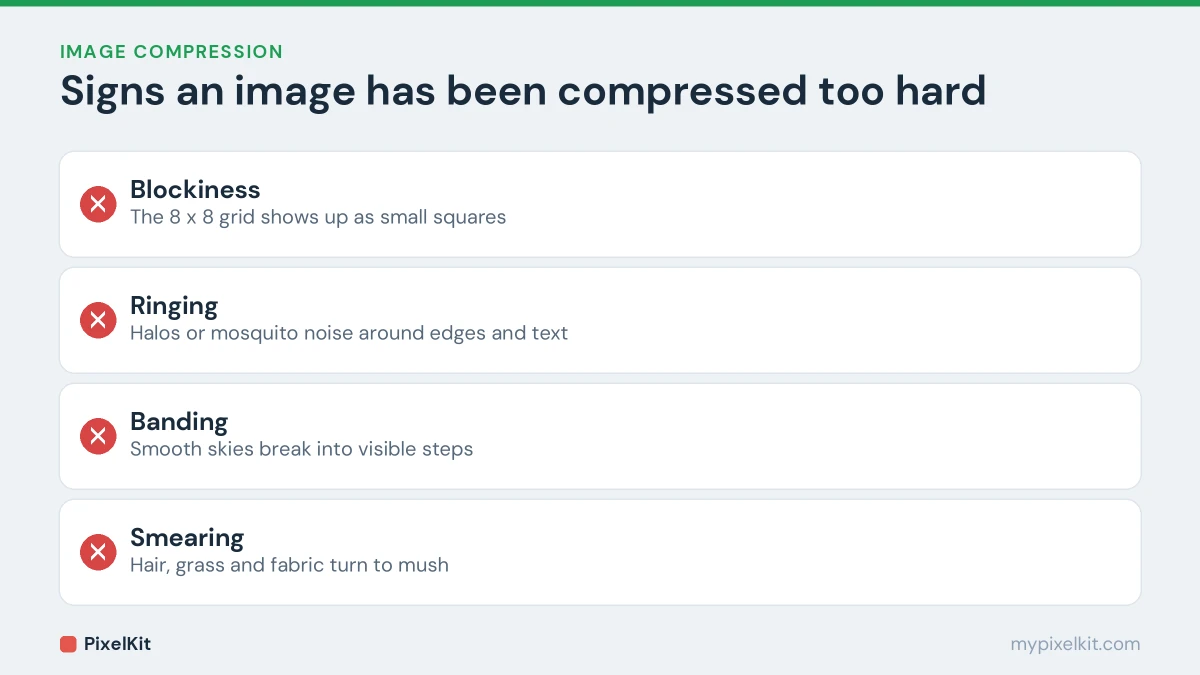
- Blockiness: the 8 × 8 grid becomes visible as small squares, especially in smooth areas.
- Ringing: faint halos or “mosquito noise” around sharp edges and text.
- Banding: smooth gradients such as skies break into visible steps.
- Smearing: fine textures like hair, grass and fabric turn into mush.
If you see these, raise the quality, or reduce the image’s pixel dimensions so the same file size has fewer pixels to cover. Our guide on compressing an image to 50KB shows how much that helps.
Generation loss: why you shouldn’t keep re-saving JPGs
Each time a lossy file is opened, edited and saved, it goes through quantization again and loses a little more detail. After several rounds the damage becomes obvious. This is called generation loss, and it is why the same meme looks worse every time it is reposted.
Three habits avoid it:
- Keep your original file untouched and always edit from it.
- If you need several editing sessions, work in a lossless format and export to JPG or WebP once, at the end.
- Compress last. When you need a specific file size, use Compress Image on the finished image rather than on something already compressed.
Converting a JPG to PNG does not bring lost detail back. It only freezes the image in its current state inside a larger file.
When to use lossy and when to use lossless
Choose lossy (JPG or WebP) for:
- photos of people, places, products and food;
- images on websites, where file size affects loading speed;
- uploads with a strict size limit.
Choose lossless (PNG or lossless WebP) for:
- screenshots, especially ones with text;
- logos, icons, charts and diagrams with flat colors;
- images that need a transparent background;
- working files you will edit again.
You can switch between JPG, PNG and WebP with Convert Image, and our guide to choosing between JPG, PNG and WebP walks through each use case. Going from PNG to JPG saves space on photos but fills transparent areas with a solid color; going from JPG to PNG with Convert from JPG is useful when a tool or form requires PNG, but it won’t improve quality.
Finding the sweet spot for lossy quality
Quality settings between about 75 and 85 are a common sweet spot for photos on the web: files are much smaller than at 100, and the difference is hard to see. Quality numbers are not comparable between different apps, though, so it is often easier to think in file size. Set the size you need, compress, and compare the result with the original at 100% zoom.
For a complete method that combines compression with resizing, format choice and cropping, read our guide on how to reduce image file size. If your images are headed for a website, the guide to optimizing images for a faster website covers the web-specific details.
Frequently asked questions
Is PNG better quality than JPG?
PNG is exact, JPG is approximate. For screenshots and graphics PNG is clearly better. For photos, a high-quality JPG is usually indistinguishable from a PNG while being a fraction of the size.
Does converting PNG to JPG lose quality?
Yes, a little, because JPG is lossy, and any transparency is replaced with a solid color. At good quality settings the loss is rarely visible in photos, but text and sharp lines can soften.
Is WebP lossy or lossless?
Both. WebP has a lossy mode that competes with JPG and a lossless mode that competes with PNG, and both support transparency.
Which should I use for printing?
Use the highest-quality file you have: the original, a lossless format, or a JPG saved at maximum quality. Print shows flaws that a screen can hide.
Sources and further reading
- Lossless compression (Wikipedia): How lossless compression rebuilds the original data exactly.
- Lossy compression (Wikipedia): How lossy compression trades exactness for much smaller files.
- Generation loss (Wikipedia): Why quality drops each time a lossy file is decoded and saved again.
- Chroma subsampling (Wikipedia): Why storing color at a lower resolution than brightness saves so much space.