Quick answer: To merge PDF files, open Merge PDF, add the PDFs you want to combine, drag them into the right order, then merge and download a single file. It runs in your browser, so the documents are never uploaded, and the pages are copied as they are, with text still selectable.
In this guide
Job portals want your CV, cover letter and certificates as one file. Accountants want a month of receipts in a single document. A visa application asks for one PDF of supporting papers. Merging PDFs is one of the most common document tasks there is, and it takes about a minute once you know a few tricks for getting the order and the size right.
How to merge PDF files, step by step
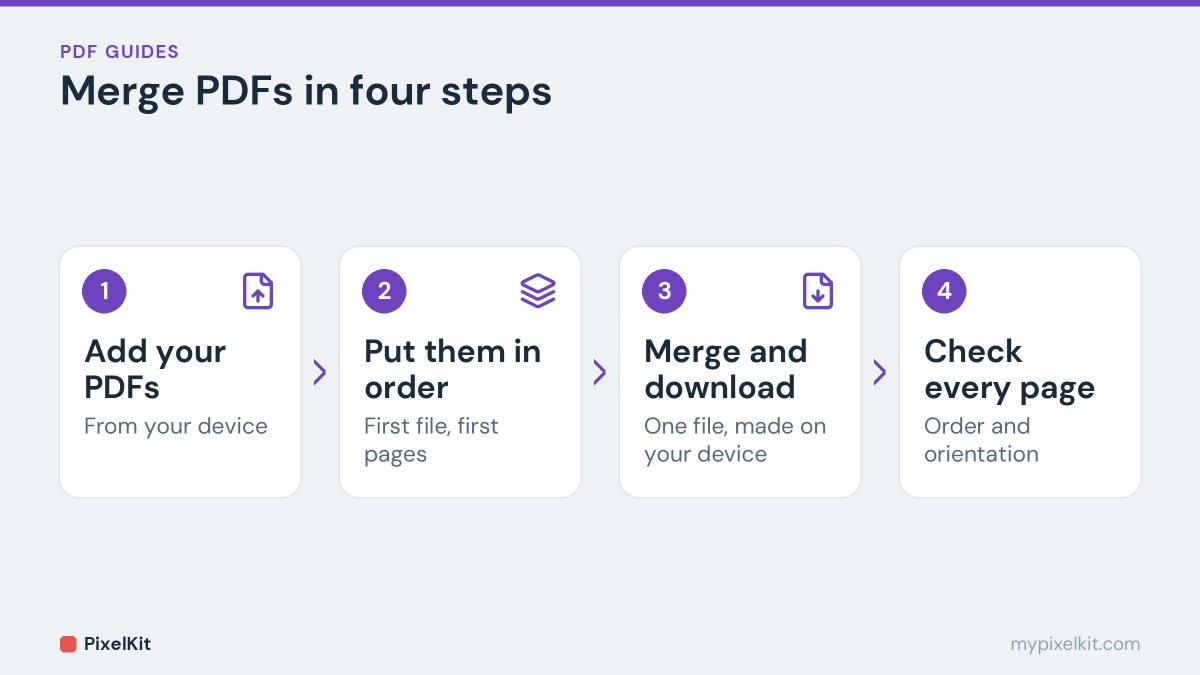
- Open Merge PDF on your computer or phone. No sign-up is needed.
- Add your PDFs. Drop them onto the box or tap to choose them.
- Put them in order. Arrange the files so the pages will appear in the sequence you want. The first file’s pages come first, and so on.
- Merge and download. The documents are combined into one PDF, which downloads straight to your device.
- Check the result. Open it and scroll through every page before you send it.
Because the merge happens inside your browser, confidential documents such as payslips, contracts and ID scans never reach a server. For an overview of everything you can do with PDFs this way, see our complete guide to free PDF tools.
Tips for getting the order right
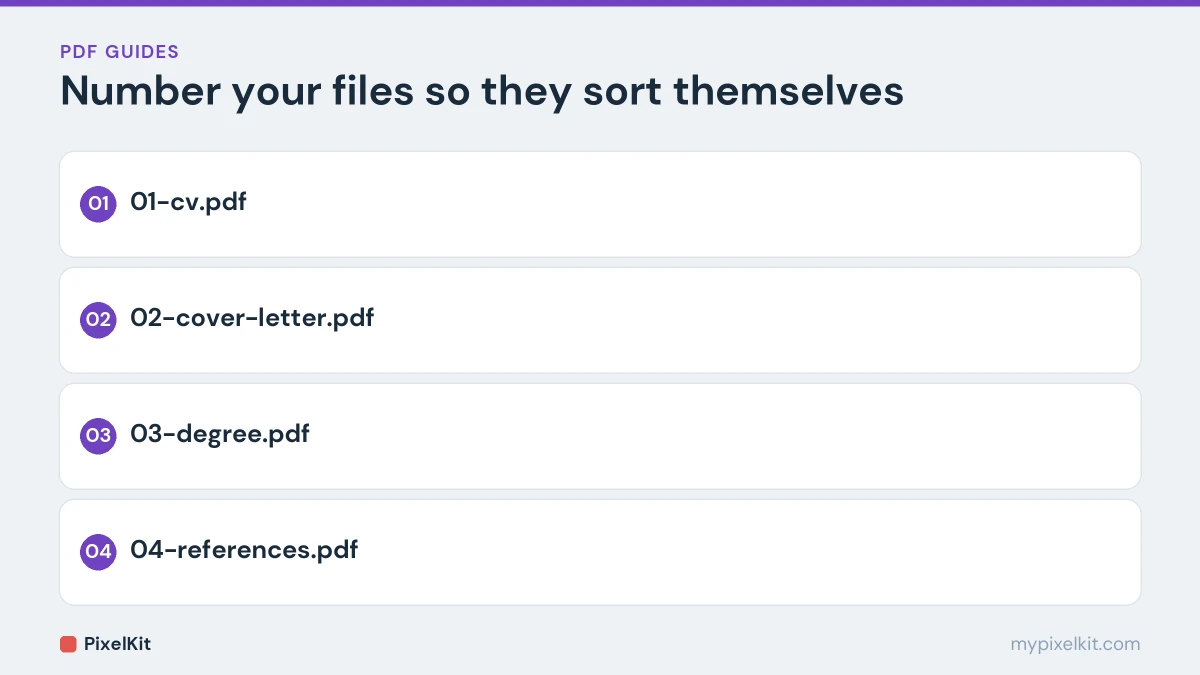
- Number your files first. Renaming them 01-cv.pdf, 02-cover-letter.pdf, 03-degree.pdf makes them sort correctly in any file picker, so less rearranging is needed.
- Follow the requested order. If an application lists the documents in a particular sequence, match it; reviewers often check in that order.
- Put a cover page first for longer bundles, so the recipient knows what is inside.
Combining PDFs with photos or scans
Often only some of your documents are PDFs, and the rest are phone photos, such as a picture of a signed form or a receipt. Merge PDF works with PDFs, so turn the images into a PDF first:
- Create a PDF from the photos with Image to PDF. Our guide on converting JPG images to PDF covers how to photograph documents so they look clean.
- Add that new PDF to Merge PDF alongside your other files, and put everything in order.
Keeping the merged file small enough
A merged PDF is roughly the size of all its parts added together. Text documents are small, but scanned pages and photos can make the result very heavy, which matters when a portal caps uploads at 2 MB or an email service limits attachments.
- Shrink images before they become PDFs. If some parts started as photos, compress them with Compress Image before converting. Our guide on compressing images to an exact size shows how far you can go.
- Leave out pages you don’t need. Extract only the relevant pages from long documents first. See how to extract pages from a PDF.
- Split the bundle into two or three files if the portal allows more than one upload.
What gets carried over, and what might not
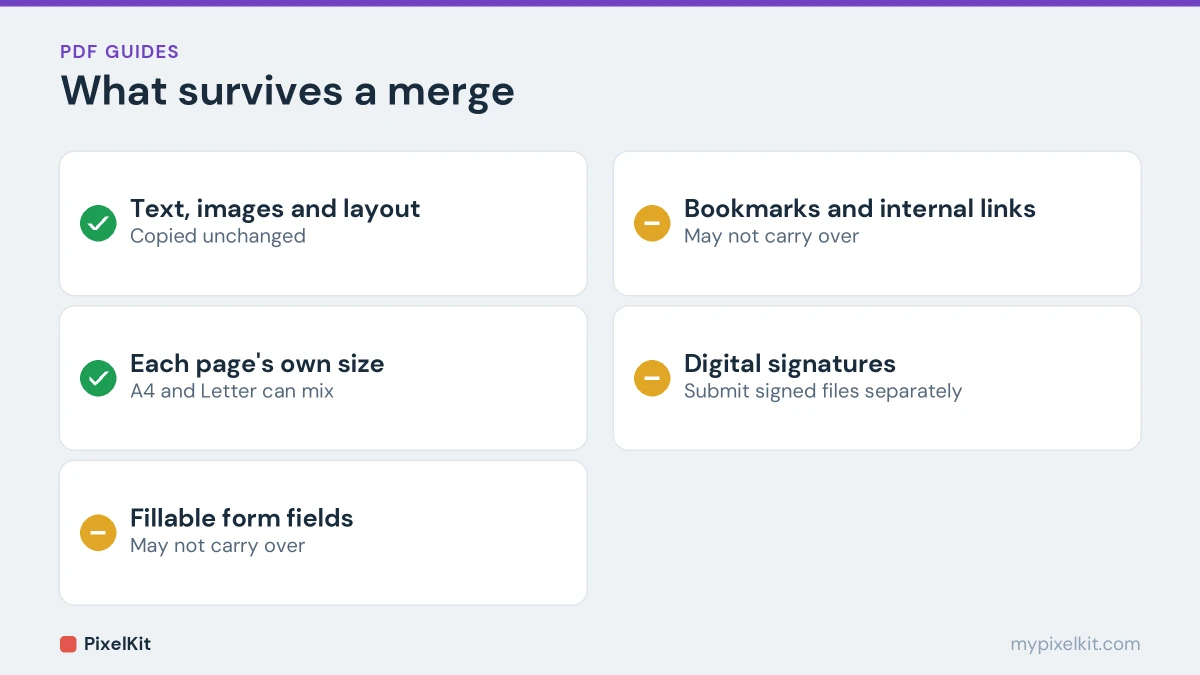
Merging copies the pages of each document into the new file. Text, images and layout come across unchanged, and each page keeps its own size, so an A4 page and a US Letter page can sit in the same PDF.
Interactive extras are less predictable. Fillable form fields, bookmarks, internal links and digital signatures may not survive a merge in the same way. If a document has to stay fillable or keep a valid digital signature, submit it as a separate file rather than merging it.
Password-protected PDFs
Bank statements and some official documents are protected with a password, and a browser tool may not be able to open them. If you are allowed to, open the file with its password in your usual PDF reader, save or print an unprotected copy for your own use, and merge that copy.
Removing or reordering pages
Merging whole files is only half the story. To drop a page, or put pages from different documents in a new sequence, split the documents into the pieces you need with Split PDF, then merge those pieces in the order you want.
Merge PDF files: quick recap
To merge PDF files, add them to Merge PDF, arrange the order, merge and download. Compress any photos first, check for password protection, and keep the originals. Because the tool runs in your browser, you can merge PDF files that contain private documents without uploading them.
Frequently asked questions
How many PDFs can I merge at once?
There is no account limit. The practical limit is your device’s memory, because the work happens in your browser. Dozens of ordinary documents are no problem; hundreds of large scanned pages may be slow on an older phone.
Does merging reduce quality?
No. Pages are copied into the new file as they are, so text stays selectable and images keep their original quality.
Can I merge PDFs on my phone?
Yes. Merge PDF works in mobile browsers on iPhone and Android, and you can pick files from your phone’s storage or cloud drive.
Are my documents uploaded?
No. The merge runs locally on your device, which is the main reason to use a browser-based tool for anything confidential.
Sources and further reading
- PDF (Wikipedia): How the PDF format stores fixed pages, text, images and forms.
- Send attachments with your Gmail message (Gmail Help): Gmail's attachment size limit and how larger files are handled.
- Scan documents with Google Drive (Google Drive Help): Scanning paper documents to PDF with the Google Drive app.