Quick answer: To crop an image to a square or any other shape, decide the aspect ratio you need, work out the largest crop of that shape your image can give (the formula is below), drag the crop box over the part you want to keep in Crop Image, then set the exact final pixels in Resize Image. Crop for shape, resize for size.
In this guide
Profile pictures want squares. Video thumbnails want 16:9. Stories want tall 9:16 frames, and prints come in their own proportions. Your photo, meanwhile, is almost certainly 4:3 or 3:2. Cropping is how you get from one shape to another without squashing anyone’s face. This guide covers the common ratios, a simple way to calculate the perfect crop, and a few composition tips that make the result look intentional.
Cropping vs resizing
Cropping cuts away the edges of an image to change its shape or remove what you don’t want. The pixels you keep are left as they are.
Resizing changes the total number of pixels but keeps the shape. If you type new width and height numbers that don’t match the original proportions, the image is stretched.
So when an image needs to be a different shape and a specific size, always crop first and resize second. Our explainer on pixels, resolution and aspect ratio goes deeper into the difference.
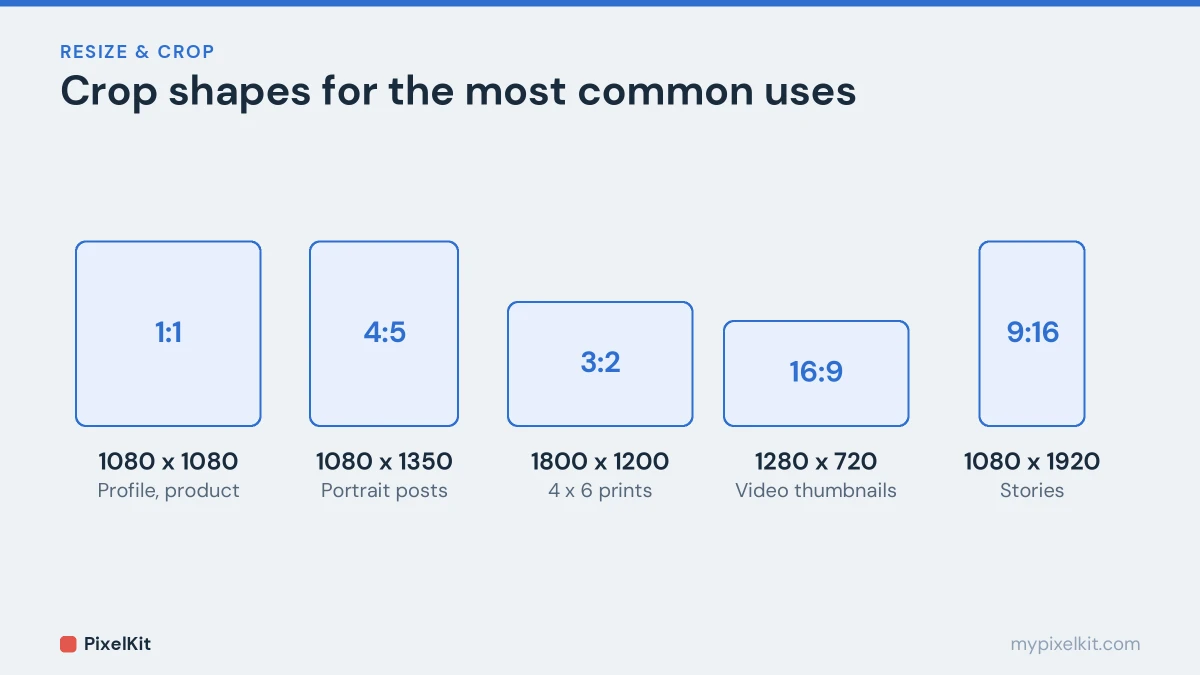
Common aspect ratios and where they are used
| Ratio | Typical uses | Example size |
|---|---|---|
| 1:1 (square) | Profile pictures, product photos, US passport and visa photos | 1080 × 1080 |
| 4:5 (portrait) | Portrait posts on social media, 8 × 10 in prints | 1080 × 1350 |
| 4:3 | Most phone camera photos, many presentations | 1600 × 1200 |
| 3:2 | Many dedicated cameras, 4 × 6 in prints | 1800 × 1200 |
| 16:9 (widescreen) | Video thumbnails, slides, desktop wallpapers, website banners | 1280 × 720 or 1920 × 1080 |
| 9:16 (vertical) | Stories, short vertical videos, phone wallpapers | 1080 × 1920 |
Platforms update their recommended sizes from time to time, so check their help pages for exact current numbers. The ratios themselves rarely change.
How to calculate the largest crop for any ratio
You usually want the biggest possible crop in the new shape, so you lose as little of the picture as possible. For an image that is W pixels wide and H pixels tall, and a target ratio of a:b:
- If the image is wider than the target shape (W ÷ H is larger than a ÷ b), keep the full height and crop the width to H × a ÷ b.
- If the image is taller than the target shape, keep the full width and crop the height to W × b ÷ a.
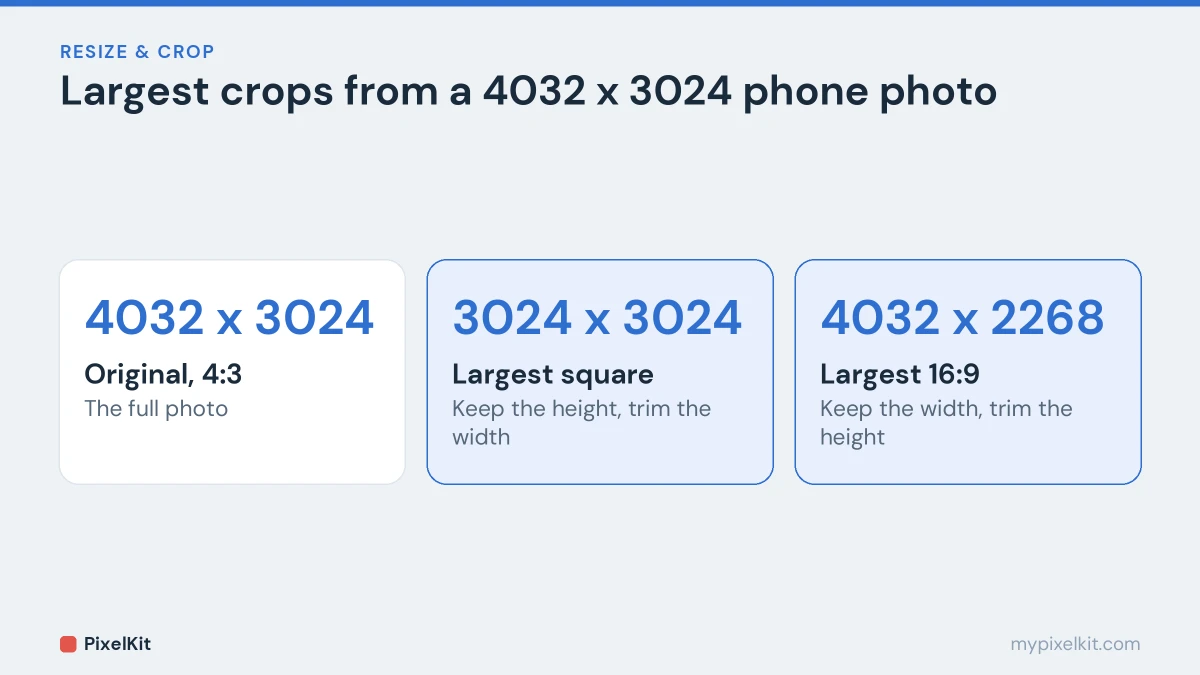
Two examples with a typical 4032 × 3024 phone photo (ratio 4:3):
- To a square (1:1): the photo is wider than a square, so keep the height, 3024, and crop the width to 3024. The largest square is 3024 × 3024.
- To 16:9: the photo is taller than 16:9, so keep the width, 4032, and crop the height to 4032 × 9 ÷ 16 = 2268. The crop is 4032 × 2268.
You don’t have to hit these numbers exactly by hand. They simply tell you how much of the picture will survive, which helps you decide what to keep in frame.
Step by step: crop an image to a specific ratio
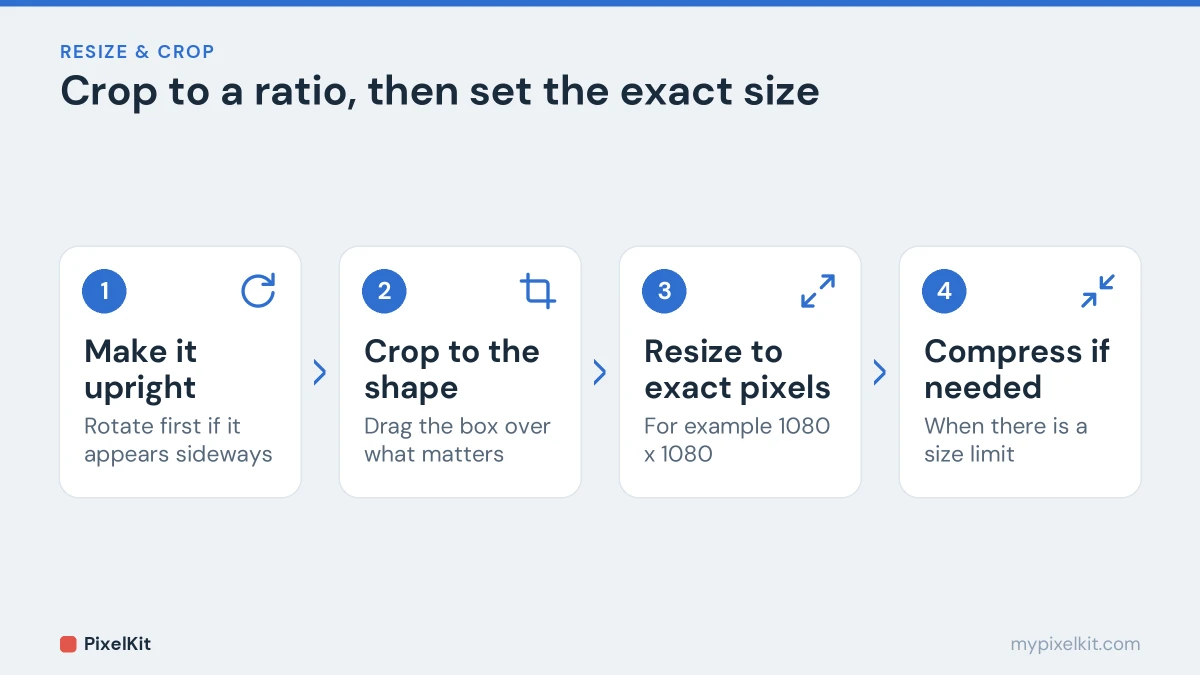
- Open Crop Image and add your photo. It works in the browser on phones and computers, and the image stays on your device.
- Make sure the photo is upright. If it appears sideways, fix it first with Rotate Image; our guide on why photos turn sideways explains the cause.
- Drag the crop box to the shape you need and position it over the part of the picture you want to keep.
- Apply the crop and download the new image. Your original file is not changed.
- Set the exact pixels. Open Resize Image and enter the final size, such as 1080 × 1080 or 1280 × 720. Because the shape already matches, nothing is distorted; if your crop was a few pixels off the ratio, the adjustment is too small to see.
If you’re preparing an ID photo, where both head position and exact pixels matter, follow our dedicated guide on resizing a photo for a passport or visa application.
Composition tips for better crops
- Use the rule of thirds. Imagine the frame divided into a 3 × 3 grid and place the subject, or a person’s eyes, near one of the lines rather than dead centre, unless the format demands centring.
- Leave breathing room. Keep a little space above heads and in the direction a person is looking or moving.
- Avoid cutting at joints. Crops through the neck, wrists, knees or ankles look awkward; crop between them instead.
- Think about circles. Many platforms show square profile pictures as circles, which hides the corners. Keep the face centred with some margin so nothing important is cut off.
- Check the thumbnail. Look at the crop at small size, as most people will see it in a feed or search result.
Cropping for prints
Print sizes have their own ratios. A 4 × 6 in print is 3:2, a 5 × 7 in print is 5:7 and an 8 × 10 in print is 4:5. A 4:3 phone photo printed at 4 × 6 in will lose a strip from its long edges unless you crop it yourself first. Cropping before you send it to the printer lets you decide what gets cut. Aim for about 300 pixels per inch of print; a 4 × 6 in print needs roughly 1200 × 1800 pixels.
Does cropping reduce quality?
Cropping doesn’t soften the part you keep. It does leave fewer pixels, which matters if you crop a small area and then need a large result, because you would have to enlarge it. If you crop tightly, keep the result at its natural size or smaller. For the details, see how to resize an image without losing quality.
Crop image to aspect ratio: quick recap
To crop image to aspect ratio targets such as 1:1, 16:9 or 4:5, decide the ratio first, work out the largest crop that fits, then position the box over the subject. Cropping leaves the pixels you keep untouched, so quality does not drop. Once you crop image to aspect ratio requirements, set the final pixel size in Resize Image if the platform also demands exact dimensions, and keep the aspect ratio locked while you do. Crop Image handles the crop itself in your browser.
Frequently asked questions
How do I crop an image to a perfect square?
Use the shorter side as the size of the square. A 4032 × 3024 photo gives a 3024 × 3024 square. Drag the crop box into a square over the subject, apply it, then resize to the exact pixels you need, such as 1080 × 1080.
What is the difference between 16:9 and 1920 × 1080?
16:9 is a shape; 1920 × 1080 is a specific size in that shape. 1280 × 720 and 3840 × 2160 are also 16:9.
Does cropping make the file smaller?
Usually, because fewer pixels are left. It isn’t a reliable way to hit a specific limit, though; use Compress Image when you need to get under a set number of kilobytes.
Can I crop a photo on my phone?
Yes. Crop Image runs in mobile browsers on iPhone and Android, with no app or account needed.
Sources and further reading
- Aspect ratio (image) (Wikipedia): Common image aspect ratios and where they are used.
- Rule of thirds (Wikipedia): The composition guideline behind balanced crops.
- Add custom thumbnails on YouTube (YouTube Help): YouTube's requirements for custom video thumbnails.
- 16:9 aspect ratio (Wikipedia): Where the widescreen 16:9 ratio comes from and where it is used.