Quick answer: Image dimensions are an image’s width and height in pixels, for example 4000 × 3000. That pixel count is what decides how sharp it can look and how large it can be printed. DPI (or PPI) only tells a printer how many of those pixels to fit into an inch, and the aspect ratio is simply the shape: width divided by height. To change the size, resize; to change the shape, crop.
In this guide
Pixels, resolution, megapixels, DPI, aspect ratio: image size comes with a lot of vocabulary, and forms and printers love to ask for it in different ways. The ideas behind the words are simple, though. Once they click, you can prepare an image for any upload form, print shop or website without guesswork.
Image dimensions in pixels
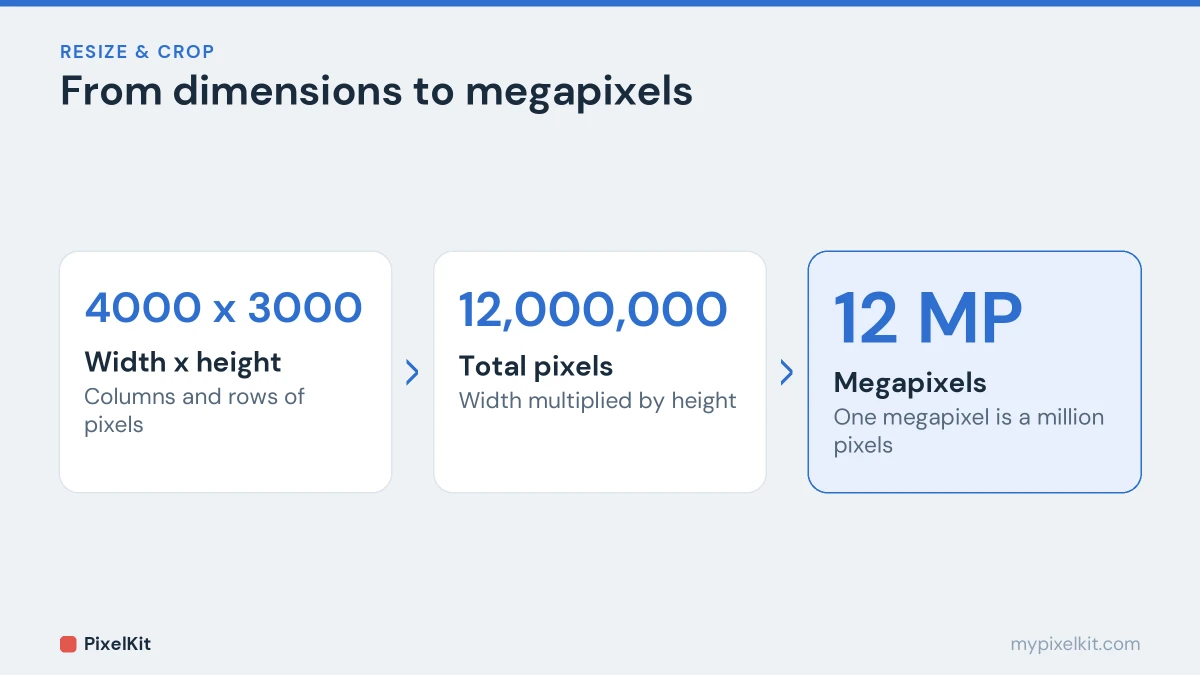
A digital image is a grid of tiny colored squares called pixels. Its dimensions are the number of pixels across and down, written as width × height. A photo that is 4000 × 3000 has 4000 columns and 3000 rows of pixels.
Multiply the two numbers and you get the total pixel count. 4000 × 3000 is 12,000,000 pixels, which is what a camera means by 12 megapixels. More pixels means more potential detail, a bigger possible print and, usually, a bigger file.
Pixel dimensions are the one measurement that is always true about an image. Everything else in this guide is either derived from them or is a label attached to them.
What “resolution” means
“Resolution” is used in two different ways, which causes a lot of confusion:
- On screens, resolution usually means the pixel dimensions. A “high-resolution photo” is one with lots of pixels; a 1920 × 1080 monitor has that many pixels.
- In print, resolution means pixel density: how many pixels are packed into each inch of paper, written as PPI or DPI.
When someone asks for a “high-resolution” image, check which one they mean. For anything shown on a screen, only the pixel dimensions matter.
DPI and PPI: what they really do
PPI (pixels per inch) describes how densely an image’s pixels are spread when it is printed. DPI (dots per inch) strictly refers to the ink dots a printer lays down, but in everyday use the two terms are used interchangeably.
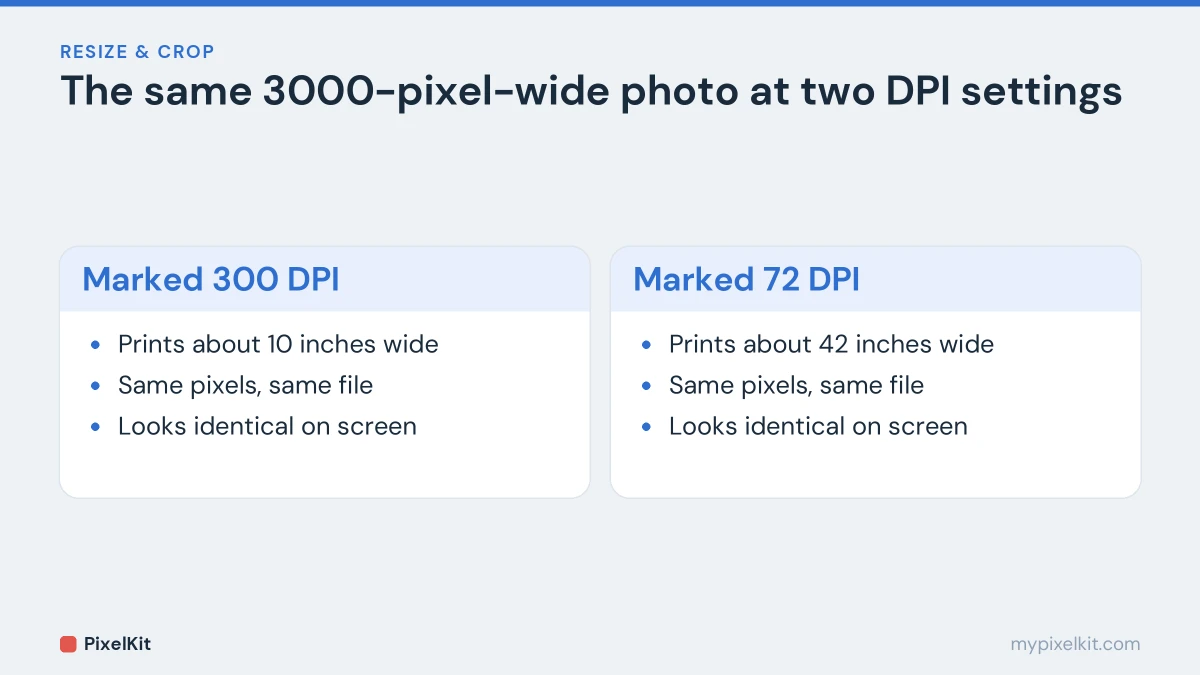
The key point: a DPI value stored in an image file is just a note. It doesn’t add or remove pixels. A 3000 × 2000 photo marked as 72 DPI and the same photo marked as 300 DPI contain exactly the same picture. The only difference is how big a printer will make it by default:
- At 300 PPI, 3000 pixels print 10 inches wide.
- At 72 PPI, the same 3000 pixels print almost 42 inches wide.
Screens ignore the value entirely. That is why changing an image from 300 DPI to 72 DPI does nothing to how it looks online, and barely changes its file size.
How many pixels you need for printing
The formula works in both directions:
- Print size in inches = pixels ÷ PPI
- Pixels needed = print size in inches × PPI
300 PPI is the usual standard for photos viewed up close. Posters and banners seen from a distance look fine at 150 PPI or even less. Here is what 300 PPI means for common sizes:
| Print size | Pixels needed at 300 PPI |
|---|---|
| 2 × 2 in (US passport photo) | 600 × 600 |
| 35 × 45 mm (common passport photo) | About 413 × 531 |
| 4 × 6 in | 1200 × 1800 |
| 5 × 7 in | 1500 × 2100 |
| 8 × 10 in | 2400 × 3000 |
| A4 (210 × 297 mm) | About 2480 × 3508 |
For millimetres, divide by 25.4 to get inches first. A modern 12-megapixel phone photo comfortably covers everything up to A4 at 300 PPI. For passport and visa photos, where both pixels and file size are checked, follow our guide on resizing a photo for a passport or visa application.
Aspect ratio: the shape of an image
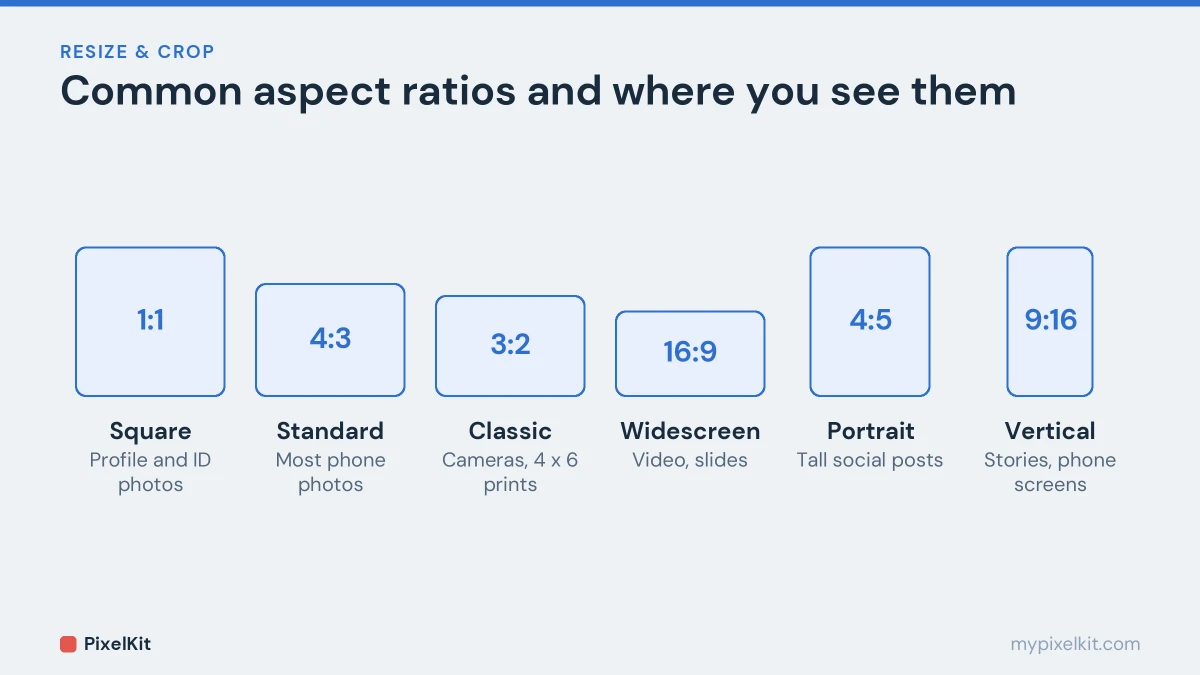
The aspect ratio is the relationship between width and height, written as width:height. A 4000 × 3000 image is 4:3; a 1920 × 1080 image is 16:9; a 1080 × 1080 image is 1:1, a square.
| Ratio | Shape | Where you see it |
|---|---|---|
| 1:1 | Square | Profile pictures, US passport and visa photos, product images |
| 4:3 | Slightly wide | Most phone camera photos |
| 3:2 | Wide | Many dedicated cameras, 4 × 6 in prints |
| 16:9 | Widescreen | Video, video thumbnails, presentations, monitors |
| 4:5 | Tall | Portrait posts on social media, 8 × 10 in prints |
| 9:16 | Very tall | Stories, short vertical videos, phone screens |
Here is the rule that saves the most frustration: resizing keeps the shape, cropping changes it. If you force a 4:3 photo into a square by typing in new width and height numbers, the picture gets squashed. To change the shape, cut part of the image away with Crop Image. Our guide on cropping an image to a square, 16:9 or any ratio shows how to work out the exact crop.
Resizing: changing the pixel dimensions
Resizing recalculates the image at a new number of pixels. When you shrink an image, several original pixels are blended into each new one, and the result stays sharp. When you enlarge an image, new pixels have to be invented from their neighbours, so the result looks softer. There is no way to add real detail that the camera never captured.
So resize down, keep the aspect ratio locked, and work from the original. Resize Image lets you set exact pixel dimensions or scale by percent, right in your browser. For the details, including what to do when you really must make an image bigger, read how to resize an image without losing quality.
Resizing is also the most effective way to cut file size, since fewer pixels need fewer bytes. If that is your goal, our complete guide on how to reduce image file size covers it step by step.
Orientation: why width and height sometimes swap
Phone cameras often store photos in the sensor’s natural landscape orientation and add a small EXIF tag that says “rotate this 90° when you display it”. Your gallery follows the tag, but some websites and programs don’t, so a portrait photo can appear sideways and its width and height can appear swapped. Rotate Image fixes this permanently, and our guide to why photos turn sideways explains what is going on.
How to check an image’s dimensions
- Windows: right-click the file, choose Properties, then open the Details tab.
- Mac: select the file and press Command + I, or open it in Preview and choose Tools, then Show Inspector.
- iPhone: open the photo in Photos and swipe up, or tap the info button.
- Android: open the photo in Google Photos and swipe up for its details.
Frequently asked questions
Does 72 DPI or 300 DPI matter for images online?
No. Screens display pixels one to one and ignore the DPI value. Only the pixel dimensions affect how an image looks on a website or in an app.
How many pixels is a megapixel?
One million. A 4000 × 3000 image has 12 million pixels, so it is 12 megapixels.
Can I increase an image’s resolution?
You can increase its pixel dimensions, but not its real detail. Enlarging fills in new pixels by estimating them from their neighbours, which makes the image softer. AI upscalers can generate convincing detail, but that detail is invented, which makes them unsuitable for ID photos and documents.
What resolution do I need for printing?
Aim for 300 pixels per inch of print for photos viewed up close. Multiply the print size in inches by 300 to get the pixels you need.
Sources and further reading
- Pixel (Wikipedia): What a pixel is and how pixel counts relate to resolution.
- Pixel density (Wikipedia): Pixels per inch and how pixel density relates to print size.
- Dots per inch (Wikipedia): What DPI means in printing and why it is not the same as pixel dimensions.
- Aspect ratio (image) (Wikipedia): Common image aspect ratios and where they are used.