Quick answer: To convert WebP to JPG, open Convert to JPG, add your .webp files (in bulk if you like), convert and download. If the image has a transparent background you want to keep, convert it to PNG instead with Convert Image. Both run in your browser, so nothing is uploaded.
In this guide
You right-click an image on a website, save it, and end up with a .webp file that your photo editor won’t open, your upload form rejects, or your printer’s software doesn’t recognise. It happens more and more, because a large share of the web now serves images as WebP. Converting takes a few seconds once you know which format to convert to.
Why so many images are WebP now
WebP is an image format created by Google to make web pages load faster. It produces noticeably smaller files than JPG and PNG at similar quality, and it supports transparency and animation. Every current web browser displays it, so websites, online shops and content delivery networks increasingly serve their images as WebP. When you save one of those images, you get the WebP file the site delivered.
WebP is excellent inside the browser. Outside it, support is less consistent. For a side-by-side look at WebP and the other common formats, see our guide to JPG vs PNG vs WebP.
When a WebP file causes problems
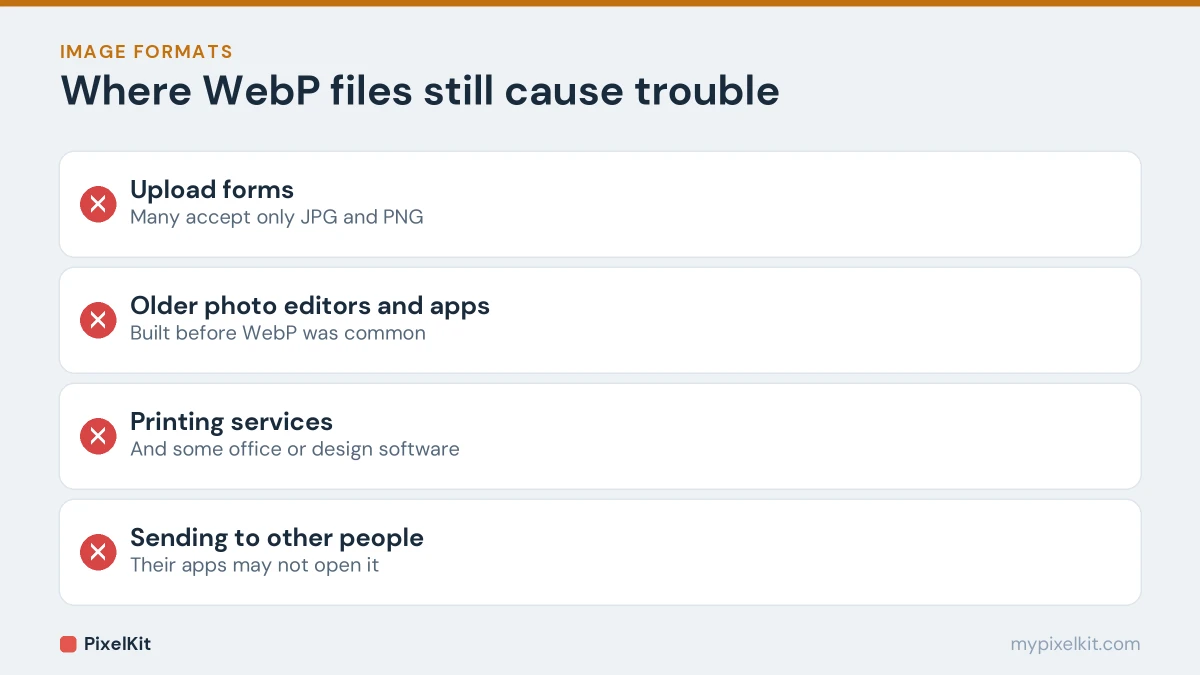
- Upload forms that list only JPG and PNG as accepted types.
- Older photo editors and apps that were built before WebP became common.
- Printing services and some office or design software.
- Sending images to other people whose devices or apps may not open WebP.
In all of these cases, converting to JPG or PNG solves the problem.
JPG or PNG: which should you convert to?
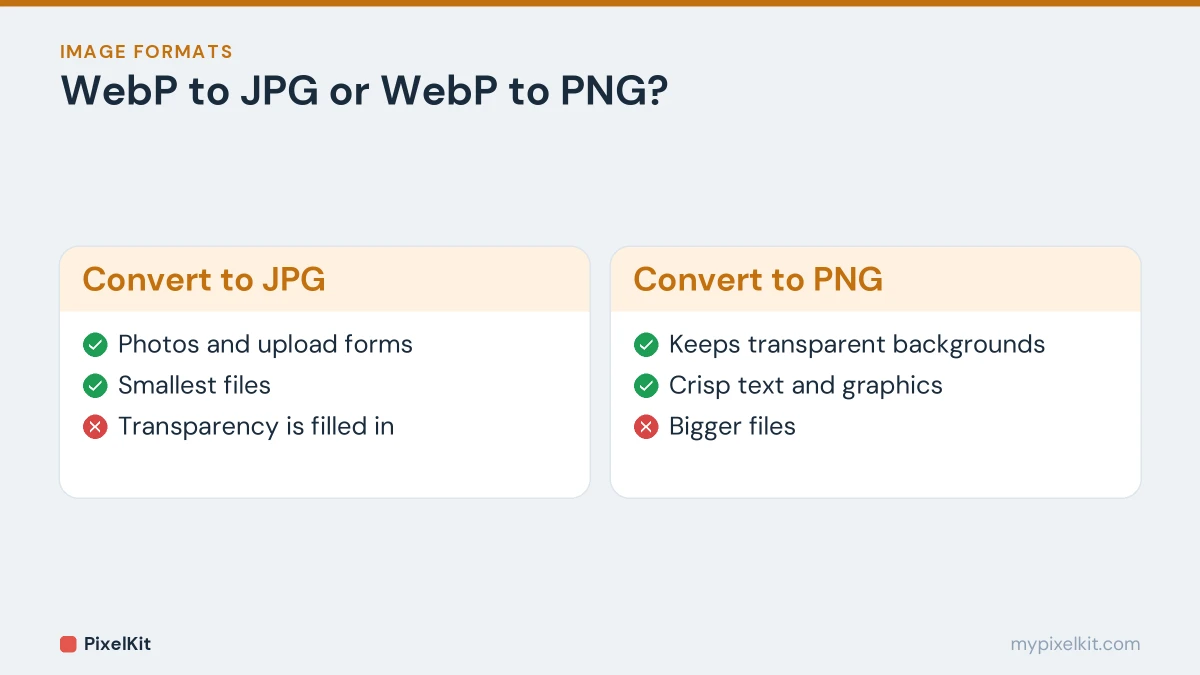
- Convert to JPG for photos, and whenever a form or app asks for JPG. It gives the smallest files and works everywhere.
- Convert to PNG when the image has a transparent background you need to keep, such as a logo, icon or product cut-out, or when it is a screenshot or graphic with text. JPG can’t store transparency and softens sharp text.
How to convert WebP to JPG, step by step
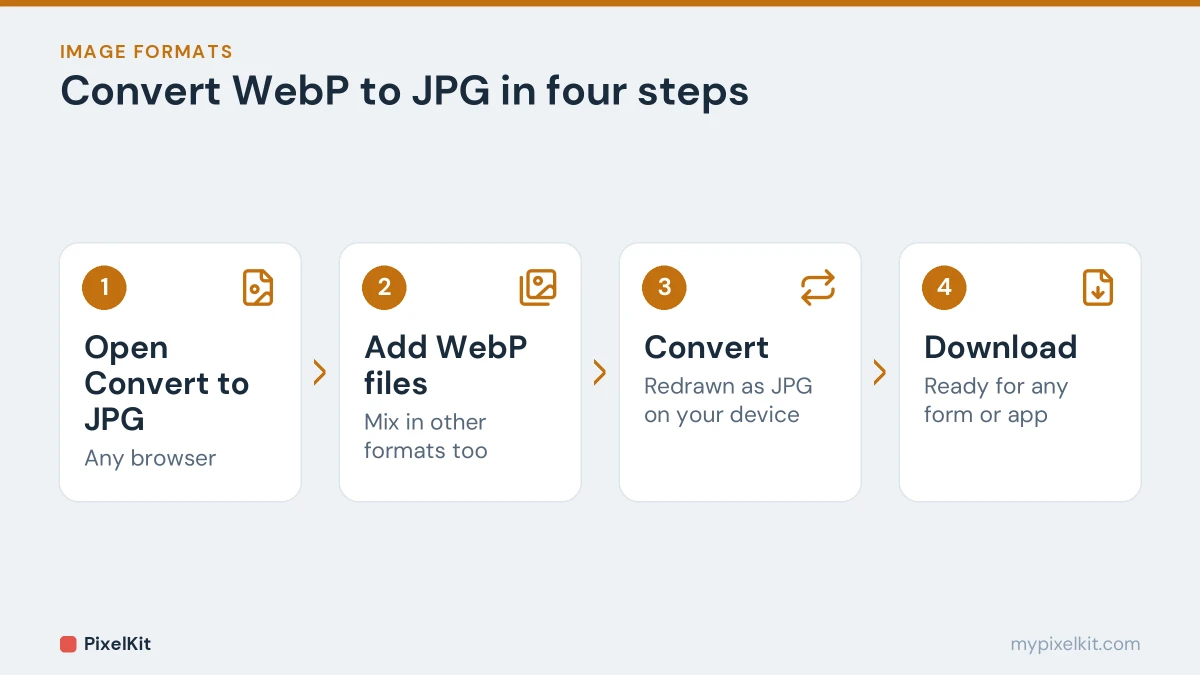
- Open Convert to JPG in any browser on your phone or computer.
- Add your WebP files. Drop them onto the box or tap to choose them. You can convert a whole batch at once, and mix in PNG, GIF, HEIC and other formats.
- Convert. Each image is redrawn as a JPG on your device.
- Download the JPGs.
Any transparent areas are filled in, because JPG has no transparency.
How to convert WebP to PNG and keep transparency
- Open Convert Image.
- Add the WebP file.
- Choose PNG as the output format.
- Convert and download. Transparent areas stay transparent.
Expect the PNG to be larger than the WebP. PNG is lossless and less efficient, so a bigger file is normal and not a sign of a problem.
Does converting WebP to JPG lose quality?
Most WebP images on the web use lossy compression already. Converting one to JPG decodes it and compresses it again, which can add a tiny amount of extra loss. At normal quality settings you are very unlikely to see a difference. Two tips keep it that way:
- Convert once, from the WebP you downloaded, rather than converting back and forth.
- If you then need a smaller file, compress the JPG a single time with Compress Image.
Converting to PNG, by contrast, keeps the image exactly as it is, just in a bigger file.
What about animated WebP files?
WebP can hold animations, like a GIF. JPG and PNG can’t, so converting an animated WebP to either of them can at best give you a still image. If you need the animation, keep it as WebP, or use software built for converting animations.
A note on images you download from websites
Being able to save and convert an image doesn’t mean you are free to reuse it. Photos and graphics on websites usually belong to someone. For your own projects, use images you created, bought or that are clearly licensed for reuse.
Should your own website use WebP?
Yes. Everything above is about using WebP files outside the browser. On your own site, WebP is the right choice for most images, because smaller files load faster. Our guide on optimizing images for a faster website covers how to use it well.
Frequently asked questions
Why does my browser save images as WebP?
Because that is the format the website sent. Your browser saves the file exactly as it was delivered.
Can I convert many WebP files at once?
Yes. Convert to JPG accepts several files in one go and converts them all together.
Is WebP better than JPG?
For images on websites, generally yes: smaller files at similar quality. For sharing, uploading and editing, JPG is still more widely supported.
Can I convert WebP on my phone?
Yes. Both converters work in mobile browsers on iPhone and Android, with no app needed. If your photos are in Apple’s HEIC format instead, see how to convert HEIC to JPG.
How do I keep the transparent background of a logo?
Convert to PNG rather than JPG. If the original never had a transparent background, you will need to remove it first; our guide on making an image background transparent explains how.
Sources and further reading
- WebP: an image format for the web (Google for Developers): Overview of the WebP format, its lossy and lossless modes and transparency.
- WebP image format (Can I use): Up-to-date browser support table for WebP.
- WebP (Wikipedia): History and technical background of the WebP format.
- About CC licenses (Creative Commons): Licenses that let creators allow others to reuse their images.