Quick answer: To convert PDF to JPG, open PDF to JPG, add your PDF, let it render the pages and download the images, one JPG per page. If you only need some pages, extract them first with Split PDF. Remember that the text becomes part of the picture, so keep the original PDF if you need to search or copy from it.
In this guide
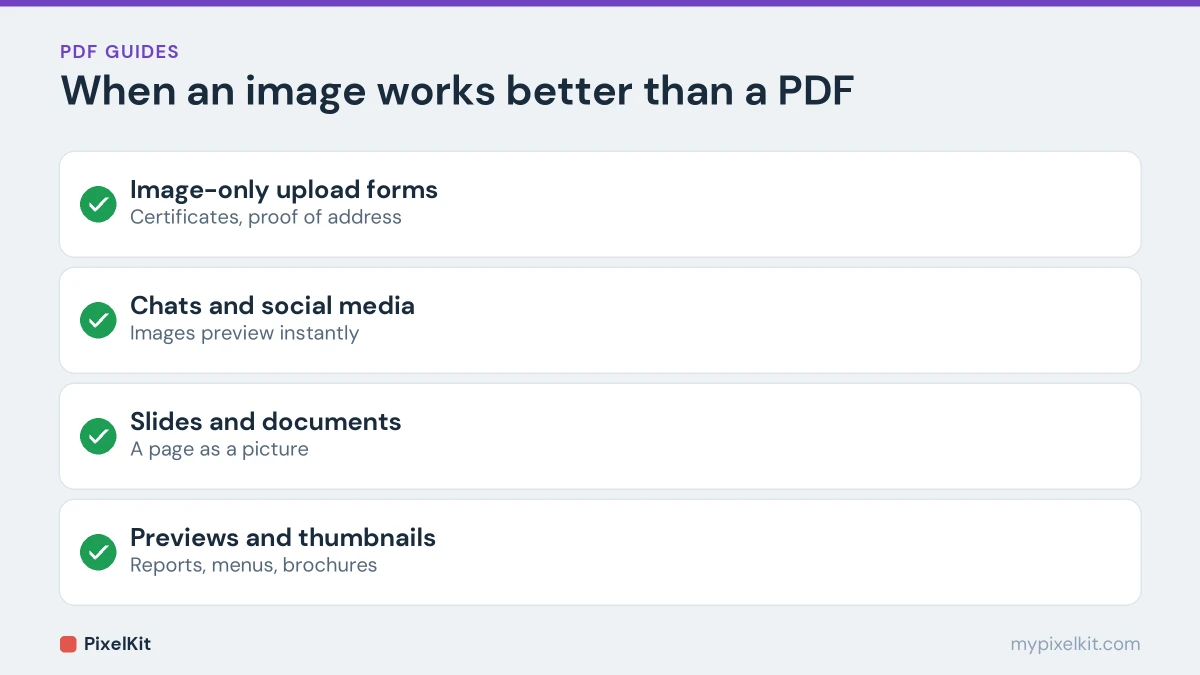
PDFs are great for documents, but not every app or website accepts them. Some upload forms only take images, chat apps show a PDF as a file icon instead of a preview, and slides or social posts need pictures. Converting PDF pages to JPG solves all of this in a few seconds, as long as you know what changes in the process.
When converting a PDF to images makes sense
- Upload forms that accept only images, such as a JPG of a certificate or a proof of address.
- Sharing a page in a chat or on social media, where an image shows up instantly and a PDF doesn’t.
- Putting a page into a presentation or document as a picture.
- Using a page as a preview or thumbnail of a report, menu or brochure on a website.
How to convert PDF to JPG, step by step
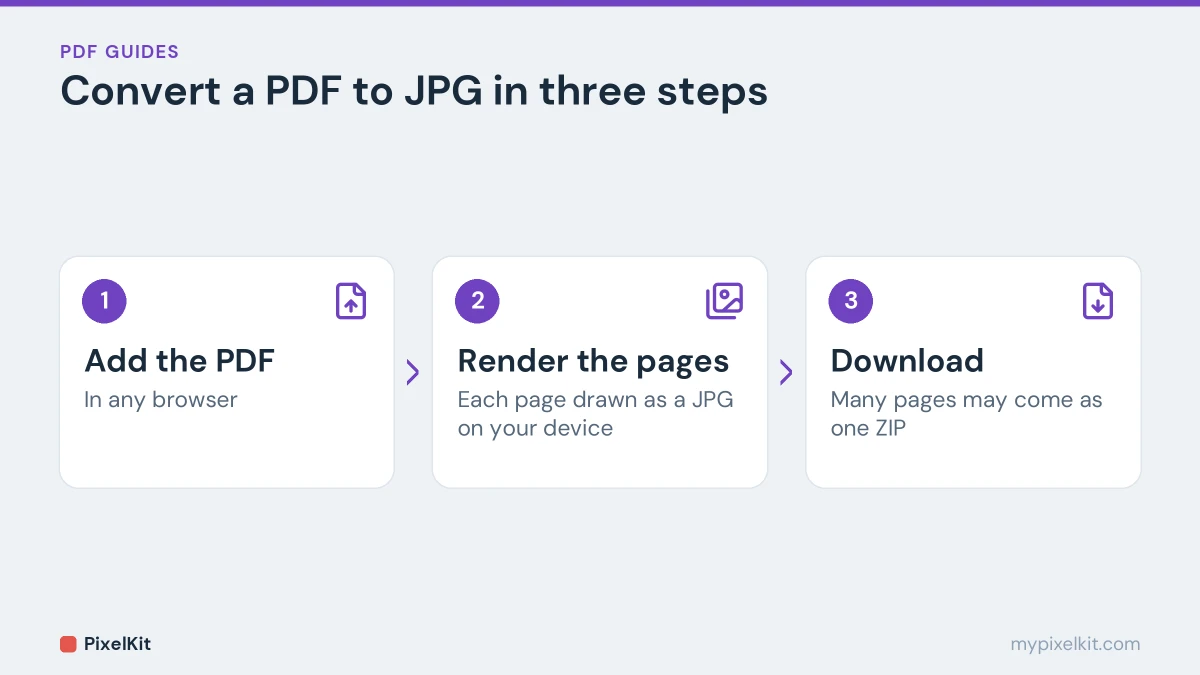
- Open PDF to JPG in your browser, on a computer or phone.
- Add the PDF.
- Let it render. Every page is drawn as a JPG image on your device. Long documents and scanned pages take longer, because each page is rendered individually.
- Download the images. With many pages, the set may come packaged as a single ZIP file.
The PDF is processed locally and never uploaded, which matters for statements, contracts and ID documents. For an overview of the other PDF tasks, see our complete guide to free PDF tools.
Converting only some pages
If you need page 3 and nothing else, don’t convert the whole document and go looking for the right image. Extract the page first with Split PDF, then convert that one-page PDF. Our guide on extracting pages from a PDF shows how.
What changes when a page becomes a JPG
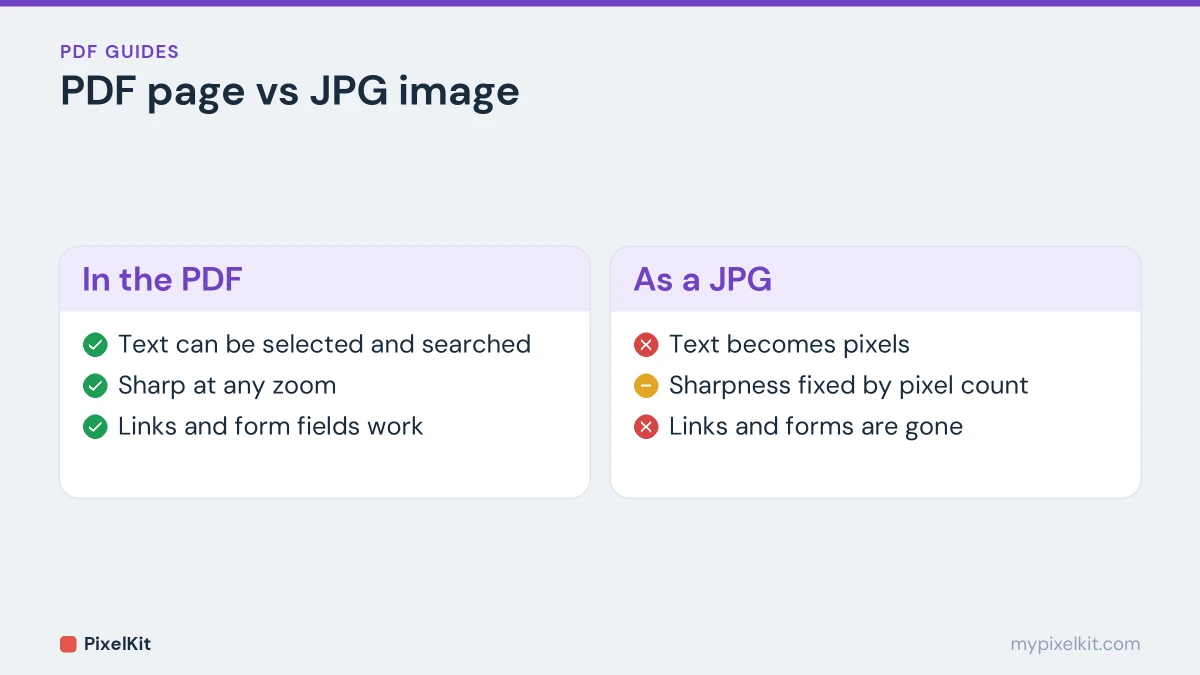
- Text becomes pixels. You can no longer select, search or copy words. Keep the PDF for that.
- Sharpness is fixed. A PDF with real text stays crisp at any zoom level; an image has a set number of pixels, so zooming in far enough eventually shows softness.
- Links and form fields disappear. An image can’t be clicked or filled in.
- Transparent areas become solid. JPG has no transparency.
For most uses, from upload forms to chat previews, none of this matters. It only matters if someone needs to work with the text afterwards.
Managing the size of the images
Each page becomes a full image, so the total can add up, especially for long documents. If a form has a size limit for the image, compress it with Compress Image. Our guide on compressing an image to an exact size covers tight limits. If the form also wants particular dimensions, resize the page image with Resize Image first; for more on pixel dimensions, see image dimensions explained.
Turning the images back into a PDF
You can rebuild a PDF from the images with Image to PDF, for example after removing or rearranging pages as pictures. The text stays as pixels, though, so if you still have the original PDF, editing pages with Split PDF and Merge PDF keeps the text intact. Our guide on converting JPG images to PDF covers the rebuild step.
JPG or PNG for PDF pages?
JPG gives smaller files and works everywhere, which suits most uses. For pages that are mostly sharp text and line drawings, PNG avoids the slight softness JPG compression can add around letters, at the cost of bigger files. If you need PNG, convert the JPG images with Convert from JPG; for which format suits what, see JPG vs PNG vs WebP.
Convert PDF to JPG: quick recap
To convert PDF to JPG, add the document to PDF to JPG and download one image per page. Pull out only the pages you need first if the file is long, and keep the original PDF, because the text in each JPG can no longer be searched or copied. When you convert PDF to JPG for a form or chat app, compress the images afterwards if they are too large.
Frequently asked questions
Will the text still be selectable?
No. Each page becomes a flat picture. Keep the original PDF if you need to search or copy the text.
Can I convert just one page?
Yes. Extract that page with Split PDF, then convert the one-page file.
Why is it slow on a long PDF?
Every page is rendered on your own device, so the time grows with the number of pages. Large scanned documents are the slowest case, particularly on older phones.
Is my PDF uploaded?
No. The conversion runs in your browser and the document stays on your device.
Sources and further reading
- PDF.js (Mozilla): Mozilla's open-source library for rendering PDFs in the browser.
- Rasterisation (Wikipedia): What happens when text and vector shapes are turned into pixels.
- JPEG (Wikipedia): How the JPEG format compresses photos, from block transforms to quality settings.
- Image file type and format guide (MDN Web Docs): The image formats supported on the web and when to use each one.